One-Click Layout & Publish to the WeChat Official-Account Draft Box With the WorkBuddy WeChat Skill
Scene Description
When writing WeChat official-account articles, the most time-consuming part often isn't the content — it's the layout. Tuning font size, line spacing, indentation and image position in the WeChat backend editor means repeated preview and edit. From finishing the write-up to actually being able to publish, layout time can be as long as writing time. WorkBuddy turns this into two steps: write content in Markdown, hand the rest of layout and publishing to a Skill auto-completion.
My own biggest WeChat-pain is layout — I really hate layout, especially image external-link handling. My old WeChat layout flow was: write content in markdown → beautify in a third-party editor → paste into the WeChat draft (the biggest problem is here — my articles have lots of images, but images pasted from the editor often break, because WeChat doesn't support third-party image hosts) → paste images one by one → preview, edit → publish.
Now with Wechat Publisher I can one-click layout, auto-upload images to the official-account draft box — really saving me over half an hour.
The Task to Complete
Once done, WorkBuddy should be able to:
- Read a Markdown-format article (title, body, images, code blocks).
- Auto-convert Markdown to a WeChat-official-account-compatible layout format, including code highlighting, theme styles and Mac-style code blocks.
- Auto-upload local and online images in the article to the WeChat image host.
- One-click push the laid-out article to the official-account draft box.
- After previewing or fine-tuning in the WeChat backend, mass-send.
Skills Used
| Skill | Purpose | Source / install |
|---|---|---|
| wechat-publisher | Markdown → official-account layout, one-click image upload and push to draft box | WorkBuddy built-in recommended market, install directly |
wechat-publisher is based on the open-source wenyan-cli, with multiple built-in layout themes and code-highlight schemes, supporting auto image upload and draft-box push.
Preconditions
- WorkBuddy usable normally.
- You have a WeChat official account (subscription or service) with developer permissions.
- You have the WeChat official-account AppID and AppSecret (view in the official-account backend "Settings → Development → Basic Config").
- Your machine's public IP has been added to the official-account backend's IP whitelist (prefer WiFi over a phone hotspot, since hotspot IPs change every time, requiring repeated whitelist-IP adds).
- You have a Markdown-written article (with title and cover image).
Steps in WorkBuddy
Step 1: Install the wechat-publisher Skill
Create a new task in WorkBuddy and enter:
Install the official-account layout Skill: wechat-publisher
**Or directly search the skill search box: wechat-publisher** — simpler and direct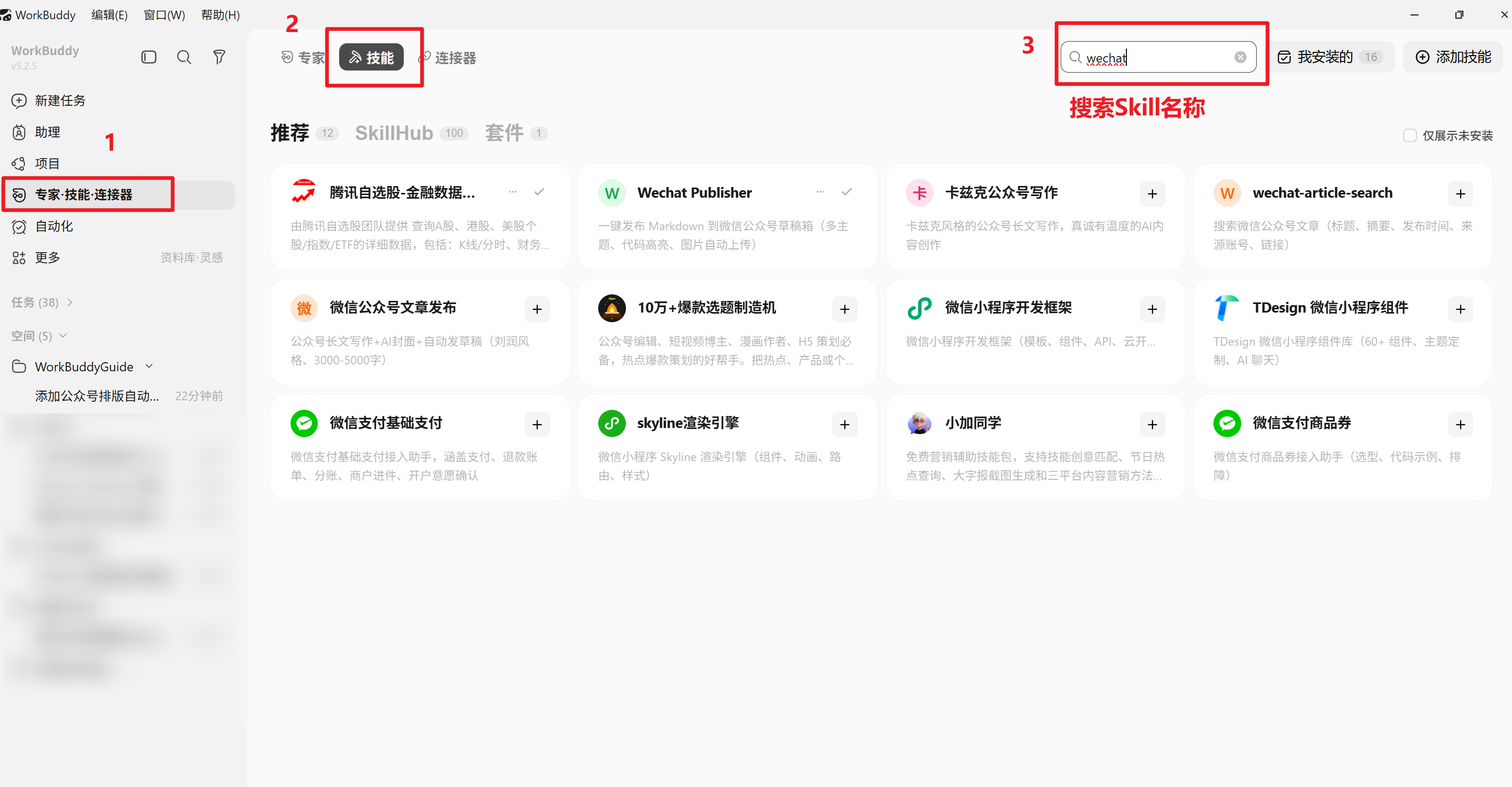 WorkBuddy searches and installs this Skill from the recommended market. After install, confirm the Skill is in place:
Is the wechat-publisher Skill installed? Tell me what it can do.Step 2: Configure Official-Account Credentials
wechat-publisher needs the account's AppID and AppSecret to call the WeChat API. Recommend using wenyan's built-in credential-management tool to configure; credentials persist to a local config file:
Run wenyan credential -s for me; I need to configure the official account's AppID and AppSecret.WorkBuddy guides you to enter AppID and AppSecret step by step; after config the conversation confirms whether the credential file saved successfully.
Note: before configuring credentials, first log into the official-account backend (Settings → Development → Basic Config → IP Whitelist) and add your machine's public IP to the whitelist. Use
curl ifconfig.meto see your current public IP.
Step 3: Prepare the Markdown Article
The article's Markdown file needs frontmatter with at least title and cover (cover-image path). The cover can be a local file or an online URL.
---
title: My Tech Article
cover: ./assets/cover.jpg
---

# Body starts

This is the article content...
You can have AI write the article in WorkBuddy directly, or drag your own Markdown file into the conversation. If you don't have a cover image, WorkBuddy can generate one:
Generate an image suited for a WeChat tech-article cover, themed around AI-assisted writing.Step 4: Execute Layout & Publish
With the article ready, tell WorkBuddy to publish:
Use the wechat-publisher Skill to publish this article to the official-account draft box.

Requirements:
- Use the lapis theme
- Code highlighting: solarized-light
- Enable Mac-style code blocks
- Use the AppID I configured earlier
WorkBuddy auto-completes:
- Checking the Markdown file's frontmatter for completeness
- Uploading images in the article to the WeChat image host
- Applying the chosen theme and code-highlight style for layout conversion
- Calling the WeChat API to push the laid-out article to the draft box
Step 5: Preview & Mass-Send in the WeChat Backend
After pushing to the draft box, log into the WeChat official-account backend and find the laid-out article in "Content Management → Draft Box". After preview-confirming in the backend, you can mass-send.
Prompts / Task Instructions
Below is the desensitized, directly reusable task instruction:
Use the wechat-publisher Skill to publish my written Markdown article to the official-account draft box.

Specific requirements:
1. Article file path: D:/articles/my-post.md
2. Use the lapis theme and solarized-light code highlighting
3. Enable Mac-style code-block decoration
4. All images in the article (local paths and online URLs) auto-upload to the WeChat image host
5. Before publishing, confirm frontmatter includes title and cover
6. Use the AppID I configured earlier via wenyan credential -s

After successful publish, tell me how to preview this article in the official-account backend.
Effect in WorkBuddy
After this flow, you get:
- A laid-out official-account draft, no need to manually tune font size, spacing and image position in the WeChat backend editor.
- Code blocks in the article have syntax highlighting and Mac-style decoration — much better than the WeChat native editor.
- All images auto-uploaded to the WeChat image host — no image loss or broken external links.
- A quick preview in the official-account backend and you can mass-send directly.
Acceptance Criteria
- The wechat-publisher Skill installed successfully and can be called in a task.
- The official-account credentials configured successfully; the saved AppID is visible.
- The Markdown article pushed to the draft box successfully; the laid-out article is visible in the backend.
- Code blocks in the article have correct syntax highlighting and theme styles.
- All images in the article (including local and online) display normally.
- On preview in the official-account backend, the layout matches expectations.
FAQ
On publish it reports "IP not in whitelist"
This is the most common issue. Log into the official-account backend and add the current machine's public IP under "Settings → Development → Basic Config → IP Whitelist". Use curl ifconfig.me to see your public IP.
Error "couldn't find the article cover"
Check whether the Markdown file's frontmatter includes the cover field. wenyan-cli strictly requires both title and cover. The cover path should be absolute (on Windows e.g. D:/photos/cover.jpg).
Image upload failed
Ensure the image path is correct. If images in the Markdown use relative paths, run the publish command in the Markdown file's directory. Or switch to absolute-path image references.
Want a different layout style
wechat-publisher supports multiple built-in themes. You can switch the -t param in the publish command, e.g.:
-t lapis: lapis theme (recommended)-t phycat: phycat theme-t default: default theme
Code highlighting can also switch via -h, e.g. -h github, -h monokai, -h dracula, etc.
Of course, you don't have to memorize these commands — just describe in natural language what you want and the AI can switch themes for you.
Safety and Limits
- AppID and AppSecret are the account's core credentials; don't share them or expose them publicly.
- Recommend
wenyan credential -sfor credential config (saved to a local encrypted file); avoid putting keys in commands or env vars. - The official-account IP whitelist should only add necessary IPs and be reviewed periodically.
- The article is pushed to the draft box, not mass-sent directly; content still needs human review before publishing.
- If the article contains company-internal or sensitive info, desensitize before publishing.
How to Reuse
This case's core capability is "Markdown writing + auto layout-publish". Swap the article content to fit different official-account creation scenes:
- Tech blog: write tech tutorials in Markdown, code blocks auto-highlight, push to the draft box for review then mass-send.
- Team weekly report: use a template and Markdown to organize the weekly content, auto-layout and share to the team official account.
- Multi-account management: switch official accounts via the
--app-idparam; one Skill manages draft publishing for multiple accounts. - Regular column: combine with WorkBuddy automation to set a fixed-format article template as a daily or weekly repeat for regular updates.