Stop Letting WeChat Favorites Gather Dust: Build a Growing Knowledge System With ima + WorkBuddy
Scene Description
WeChat is most people's biggest daily info-intake entry — public-account articles, group-chat discussions, images and links friends share; a lot of good content flows past every day.
But the problem: you favorite a hundred articles and never open them again; you save a pile of screenshots and can't find them when needed; knowledge is fragmentary, scattered across chat history and the favorites folder, never truly digested into your own thing.
I was exactly like that — hundreds of items in my WeChat favorites, but less than a tenth ever revisited. Later I tried the ima knowledge base — forwarding WeChat content straight in is indeed better than the favorites folder; it's searchable and categorizable. But storing alone isn't enough; I wanted to connect these fragments into a structured, continuously growing knowledge system.
That's where WorkBuddy's ima connector became the key puzzle piece: ima stores, WorkBuddy processes and reorganizes.
Two Uses: Lightweight vs Deep
| Plan | Suited for | Can do | Can't do |
|---|---|---|---|
| ima only | Light users | Store WeChat content, occasional search Q&A | Content stays fragmentary; hard to form a system |
| ima + WorkBuddy | People who want to build a knowledge system | Store + process + structure + continuous growth | Needs extra connector config |
The most direct, no-roundabout way to state the ima + WorkBuddy advantage: WorkBuddy can take the whole knowledge base or a single file as context, process it, and one-click write the result back to ima, forming a loop — turning fragmentary WeChat content into a reusable knowledge system, rather than just simple Q&A inside ima.
Friend, put this way you should get the beauty of it (great, friend, hahaha~).
If you just want a better-than-favorites place to store things and occasionally search, ima alone is enough. If you want to truly internalize these fragments into reusable knowledge assets, read on.
The Task to Complete
- Save WeChat text, images, public-account articles etc. into the ima knowledge base.
- In WorkBuddy connect the ima knowledge base and use its content as AI-conversation context.
- Have WorkBuddy organize the fragments into a structured knowledge system per your specified domain (classification framework, topic summary, knowledge map).
- Write WorkBuddy's structured result back to ima, forming the "collect → process → sediment" loop.
- As new WeChat content comes in, keep appending and re-organizing.
Skills & Connectors Used
| Tool | Purpose | Source / install |
|---|---|---|
| ima knowledge base connector | Connect the ima knowledge base so WorkBuddy can read and operate on its content | WorkBuddy built-in connector market, add directly |
| ima knowledge base (client) | Receive WeChat content, provide storage and basic management | Tencent ima official client |
The ima connector is the bridge between WorkBuddy and ima — WorkBuddy can read the whole knowledge base or a single doc as conversation context, and write results back to ima.
Preconditions
- WorkBuddy usable normally.
- Tencent ima client installed (PC or Mac) / mini-program also works, with a knowledge base created.
- You know how to forward WeChat content to ima (long-press in WeChat → forward → pick ima).
- The ima knowledge base connector is added and authorized in WorkBuddy.
Steps in WorkBuddy
Step 1: Save WeChat Content to ima
This is a daily动作, no WorkBuddy needed. Anything valuable in WeChat:
- Public-account article: open → top-right "..." → open with mini-program → pick ima
- Group/private-chat text: long-press the message → open with mini-program → pick ima
- Image/screenshot: long-press the image → open with mini-program → pick ima
Over time your ima knowledge base accumulates raw material. 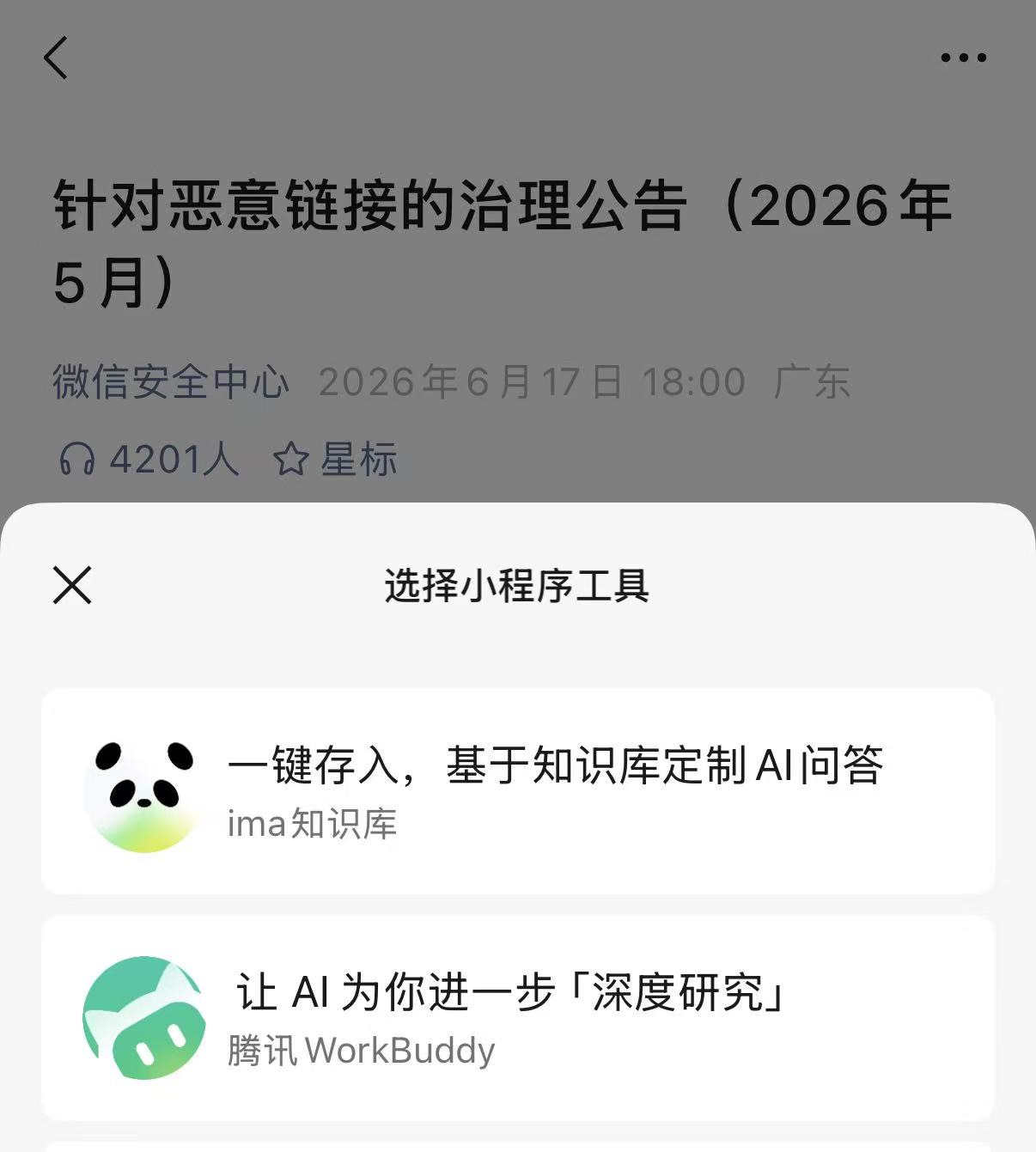
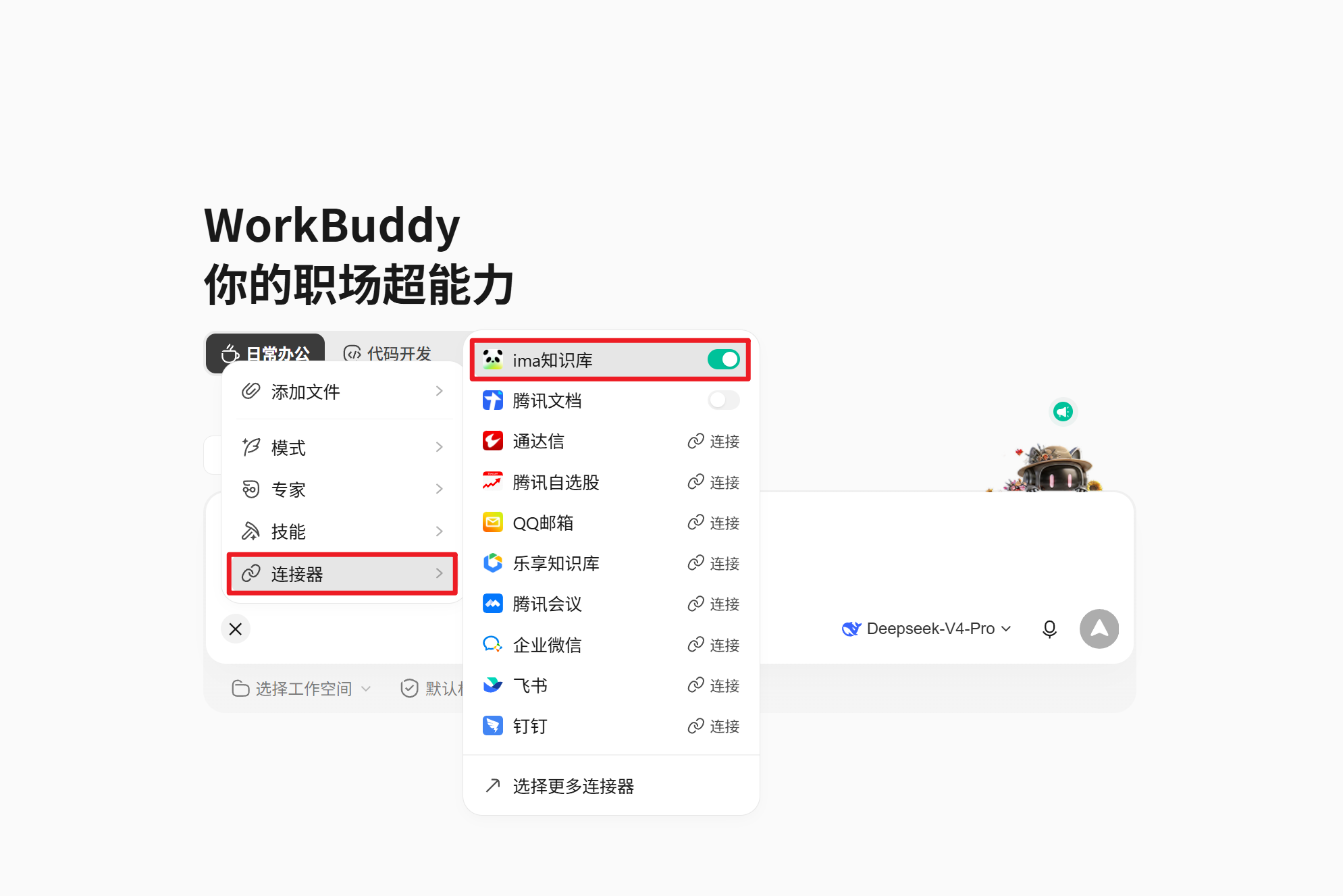
Step 2: Add the ima Connector in WorkBuddy
In WorkBuddy open the connector management panel, search and add the "ima knowledge base" connector, complete authorization. Once authorized, WorkBuddy can read your ima knowledge base content.
Step 3: Use WorkBuddy to Organize the Knowledge System
With the connector in place, enter a task description in WorkBuddy. For example you've recently stored lots of AI-product articles in ima and want WorkBuddy to organize:
I've recently stored many AI-product articles in the ima knowledge base; please do a knowledge-organizing pass for me.

Requirements:
1. Browse all content in the knowledge base; first give me a content overview.
2. Classify by three dimensions: large-model underlying capabilities, AI application products, industry trends.
3. Under each category list core viewpoints and the key sources backing them.
4. Find connections between content (e.g. A's viewpoint further validated or refuted by B).
5. Finally output a knowledge map marking which sub-domains I currently cover and which still have gaps.
WorkBuddy reads your ima knowledge base, analyzes all content, and assembles the fragments into a logical web.
Step 4: Write the Organized Result Back to ima
When organizing is done, tell WorkBuddy to save the result back to ima:
Save the just-generated knowledge-organization report to the ima knowledge base, named "AI Product Knowledge System-2026.07".WorkBuddy writes the result back to ima via the connector; next time you search in ima you'll find this structured report.
Step 5: Keep Updating the Knowledge System
After a while you store new WeChat content in ima. Reopen WorkBuddy:
Some new content has been added to the ima knowledge base recently; help me integrate it into the previous knowledge-system framework. If new sub-domains appear, add them to the knowledge map; if the new content conflicts with prior viewpoints, point out the difference.This way your knowledge system isn't one-off but keeps growing with input.
Prompts / Task Instructions
Connect my ima knowledge base and do a full knowledge-system organizing pass for me.

Background:
I save valuable WeChat content (public-account articles, group-chat discussions, tech-blog screenshots, etc.) to ima; the content centers on [your domain: e.g. AI products / tech writing / front-end dev].

Requirements:
1. First browse all content; do an inventory and tell me what's in the base.
2. Organize content by 3–5 core dimensions; under each list key viewpoints and the corresponding source content.
3. Find connections, complementarities and contradictions between content.
4. Draw a knowledge map (text form is fine) marking covered sub-domains and gaps.
5. Write all organizing results back to ima, named "[domain] Knowledge System-YTD".

I'll keep having you update this knowledge system as I add content.
Effect in WorkBuddy
Once this flow runs, you get a "living" knowledge system:
- WeChat content no longer piles up gathering dust in favorites, but is categorized, linked and structured in ima.
- The original scattered fragments become a skeleton-bearing, navigable knowledge map — you always know what you've mastered in a domain and what's still missing.
- WorkBuddy doesn't just tidy; it builds cross-content connections — hard for the human brain, especially at scale.
- After the organized result is written back to ima, you can search and view it directly in ima, or keep using it as context for the next WorkBuddy conversation.
- New WeChat content keeps feeding into this system; the knowledge base gets "thicker", not messier.
Acceptance Criteria
- The ima client works normally; WeChat content forwards to ima successfully.
- The WorkBuddy ima connector is authorized and can read knowledge-base content in a conversation.
- WorkBuddy can output a structured knowledge-organizing report (classification, connections, knowledge map) based on the knowledge base.
- The organized result writes back to the ima knowledge base successfully and is searchable in ima.
- On later additions, WorkBuddy integrates onto the existing system rather than starting over.
FAQ
The ima connector won't connect
Check the connector's authorization status. If the prior auth expired, re-authorize in the WorkBuddy connector management panel. Also confirm the ima client is signed in to the same account.
WorkBuddy can't read some knowledge-base content
Check whether the content was saved to the ima knowledge base successfully (visible in the ima client). Some formats (pure video, mini-program cards) may be unsupported.
The organizing result isn't deep enough
Give WorkBuddy more explicit instructions in the prompt: the classification dimensions you want, the granularity to extract, and the output format. The more specific the prompt, the more controllable the result.
Too much content to organize in one pass
Process in batches by time or topic range. E.g. "first organize the last three months" or "only AI-product content". After batch organizing, do one overall summary.
Safety and Limits
- Content in the ima knowledge base is your own data; using it in WorkBuddy won't leak it.
- If the knowledge base contains sensitive personal info or company-internal material, confirm before use what's suitable as AI-conversation context.
- Before writing back to ima, check the generated result for AI-fabricated data or sources; human-review if needed.
- The ima connector's availability and features may change with official updates; refer to the latest notes in the connector market.
How to Reuse
The core of this case is the three-step "collect → process → sediment" loop; swap the domain and tools to fit many scenes:
- Reading-notes system: send WeRead excerpts and highlights to ima; use WorkBuddy to organize reading notes by topic.
- Tech-research system: store tech articles and GitHub project links in ima; use WorkBuddy for tech-selection analysis and competitor-comparison reports.
- Learning-tracking system: send course notes and study screenshots to ima; WorkBuddy regularly does learning reviews and weak-point diagnosis.
- Content-creation asset library: store topic inspiration, reference articles and reader feedback in ima; WorkBuddy organizes topic scheduling and content outlines.