Chapter 10 — WorkBuddy Automation Tasks
What really drains people is usually not the big creative tasks, but the daily routine of opening the same pages, collecting similar info, formatting it the same way, and sending the result to the same people. WorkBuddy automation's value is turning this "fixed-time, similar-steps, checkable-result" work into repeatable Agent tasks.
Why WorkBuddy Can Automate
Traditional automation usually requires a person to write every step as code: which system to open, which button to click, which column to read, how to branch on exceptions.
WorkBuddy's difference is combining "scheduled triggers" with the Agent's understanding, tool-calling and file-handling. You don't have to code every detail, but you do need to make the goal, inputs, boundaries and result clear.
Automation config is saved on the local client — task name, prompt, schedule rule, working directory and execution state. At the set time, WorkBuddy launches an Agent task with your current signed-in identity, and per the prompt calls the model, Skills, MCP or connectors to complete queries, summaries and file handling in the specified working directory.
What actually keeps a task stable is five things: a clear trigger time, a repeatable input source, a specific-enough prompt, a fixed and controlled working directory, and acceptance criteria that can judge success or failure.
What Automation Is Good For
The most intuitive use is handing the daily, weekly and monthly repetitive work to WorkBuddy. The value isn't just fewer clicks — it's that tasks don't get forgotten when you're busy, and the execution method doesn't drift with whoever happens to be doing it.
| Scenario | What it can automate | Typical output |
|---|---|---|
| News & intel | Scheduled search for industry news, policy, competitor moves, dedupe and summarize | Daily briefing, risk alerts, source list |
| Daily & weekly reports | Aggregate tasks, calendar, docs and data changes into a fixed structure | Daily report, weekly report, project progress sheet |
| Data & spreadsheets | Collect files, merge tables, clean fields, check missing and anomalies | Reconciliation sheet, anomaly list, trend chart |
| File management | Archive by date and project, batch rename, extract text from PDF or images | Archive directory, index, processing log |
| Content ops | Collect topics, generate headline candidates, organize assets, make publish drafts | Topic bank, content draft, cover-request slip |
| Knowledge management | Tidy bookmarks, meeting minutes and ideas on schedule, add tags and sources | Knowledge cards, weekly review, to-digest list |
| Product & R&D | Inspect logs, aggregate issues, check dependencies and build results | Inspection report, defect summary, upgrade advice |
| Personal | Generate study plans, phase reviews, booking or reminder tasks | Study list, reminders, execution log |
Which Task to Automate First
Use these six questions to judge. The more "yes", the more suited it is for the first batch:
- Does it repeat: happens at least weekly, not a one-off;
- Is input stable: folders, pages, tables or connector sources are fairly fixed;
- Are steps similar: content changes but the processing is basically the same;
- Is the result checkable: can verify count, fields, time range, source or whether a file was produced;
- Is failure recoverable: can rerun on failure without immediate irreversible loss;
- Are permissions controllable: can limit the working directory, account and allowed tools.
The best starting point usually isn't "run my whole company", but "every day at 8 a.m. collect 10 AI industry news items, dedupe, keep links, generate a Markdown briefing to a given directory". The clearer the scope, the easier to spot issues and improve gradually.
From an Idea to a Runnable Task
Before creating automation, rewrite the verbal need into a small task spec. A reliable prompt should answer: when to run, what to read, how to process, where to output, what counts as done, what to do on failure, and which actions are forbidden.
Task name: Daily AI industry briefing
Trigger: every day 08:00, timezone Asia/Shanghai
Working directory: automation/ai-daily

Input:
- Search AI product, model and industry news from the past 24 hours
- Only use accessible public sources and keep links

Processing rules:
1. Merge duplicate events; organize into product, technology, business categories
2. Each item: title, 100-word summary, source, publish time and link
3. Items with unconfirmed time or source go to "to-verify"; don't fabricate

Output:
- Save as YYYY-MM-DD-ai-daily.md
- Up to 10 items in the body, with a source list at the end
Create an Automation Task
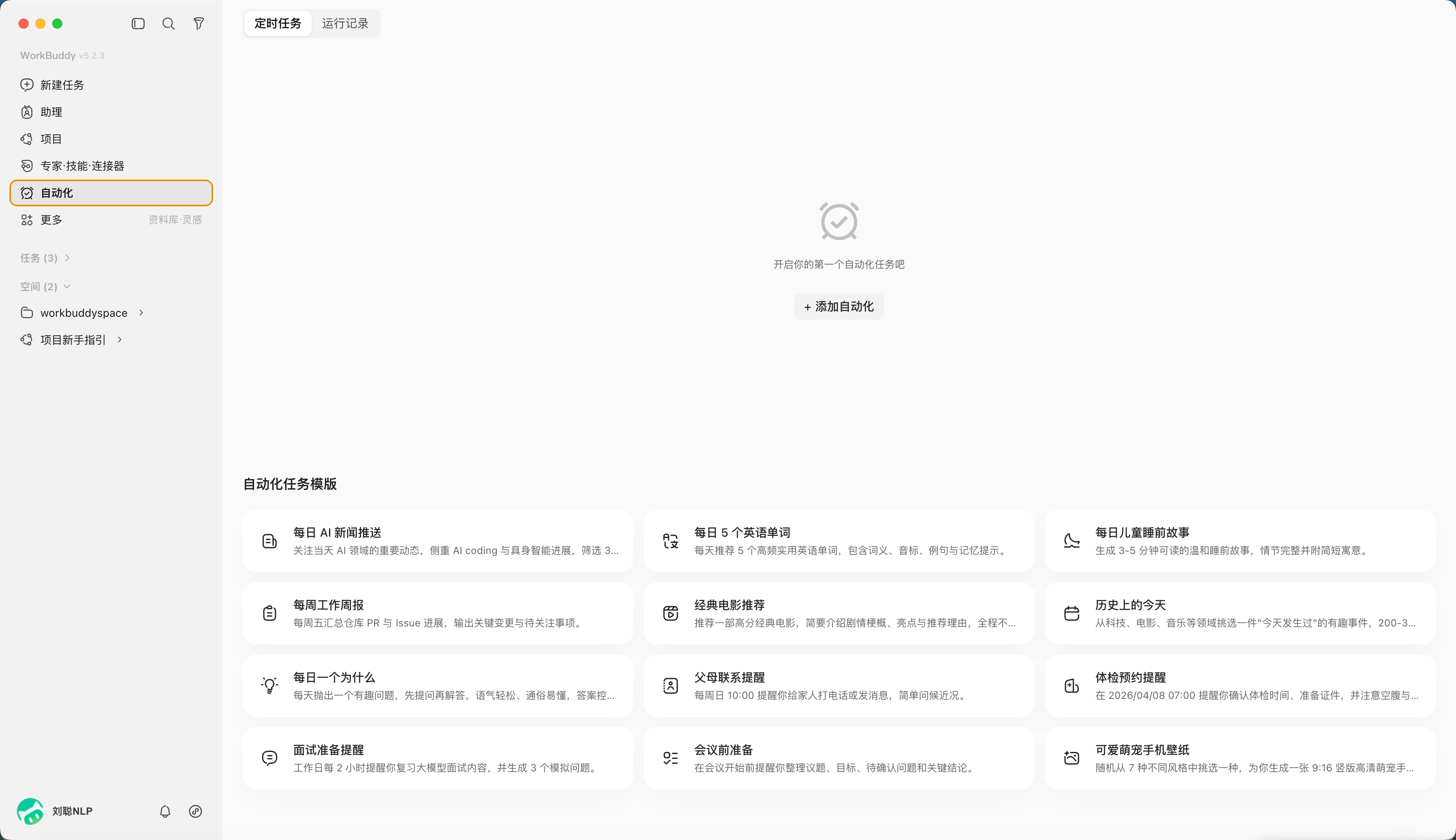
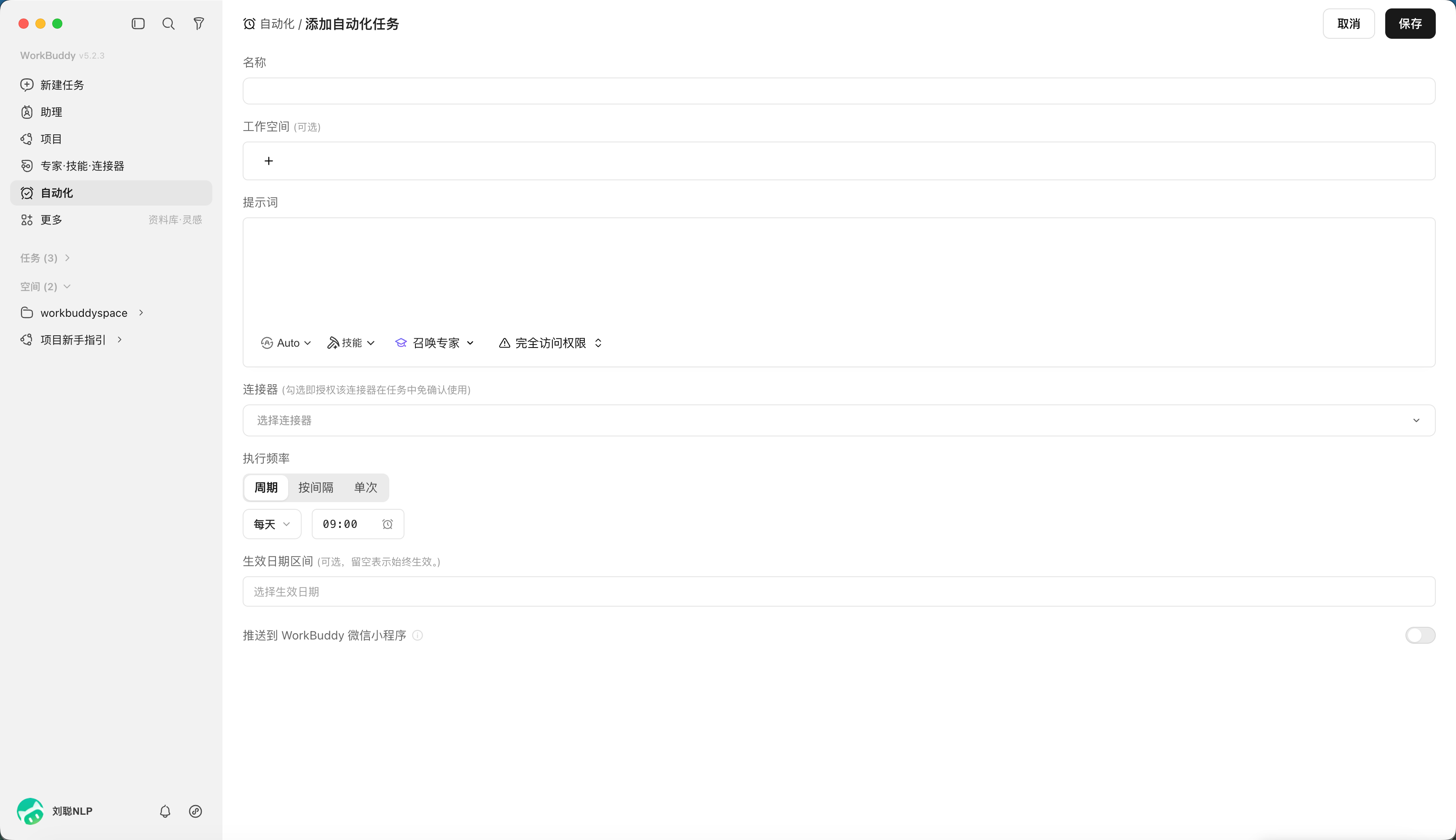
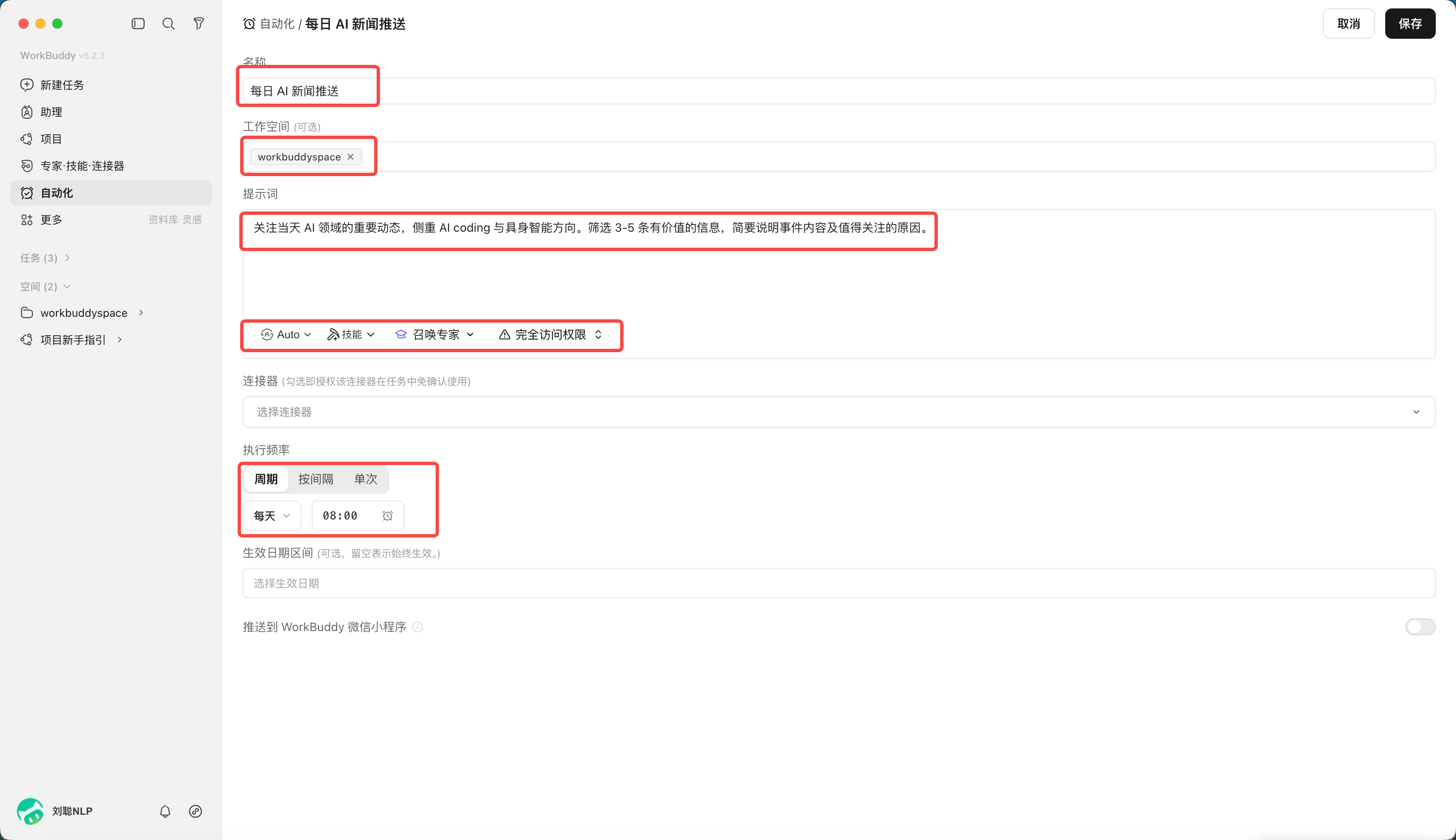
Open the "Automation" page in WorkBuddy to see scheduled tasks and history. Click "Add" and configure task name, workspace, prompt, model & skills, schedule rule, and whether to push the result to the WorkBuddy mini-program.
| Field | Purpose | Tip |
|---|---|---|
| Name | Distinguish automations | State object and frequency, e.g. "Daily AI briefing" |
| Workspace | Limit execution dir and file save location | Use an independent dir per automation to avoid overwriting |
| Prompt | Describe goal, steps, output, boundaries | Use the template above; don't write just a slogan |
| Model & skills | Decide available understanding & execution | Pick only the Skills and connectors the task truly needs |
| Schedule | Set frequency and effective dates | Start low-frequency, then raise |
| Push to mini-program | Review result on phone | Before enabling, confirm which results sync to cloud via a secure link |
Click "Automation".
"Add Automation" to customize your task.
For example, a daily AI news push, scheduled at 8 a.m.
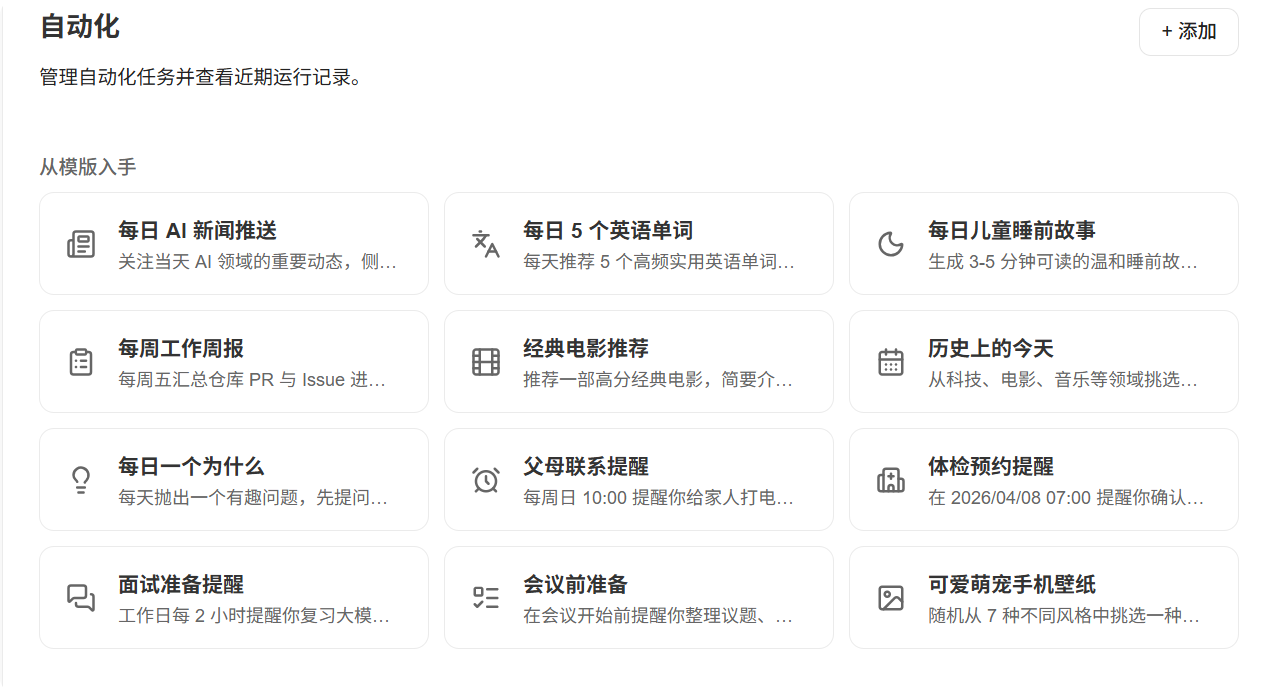
Don't Want to Write a Prompt From Scratch? Start With a Template
Official task templates cover common scenes like news push, weekly report, health-check booking and study plans. A template gives you basic fields and structure, but it isn't the final answer. After picking one, still edit the data source, time range, output location, acceptance criteria and forbidden actions.
More Automation Scenes Worth Trying
| Task | Trigger | Suggested human check to keep |
|---|---|---|
| Weekly report | Every Fri, read this week's tasks, calendar and deliverables | Confirm progress and risk wording before sending |
| Sales daily | Daily, aggregate new customers and follow-ups from CRM or sheets | Verify amounts, customer status and owner |
| Expense & invoice tidying | Monthly, read receipts and reimbursement sheets in a given dir | Finance checks tax, duplicates and attribution before submit |
| Self-media topic radar | Daily, collect trending topics, industry talk and comment-section questions | Human judges brand stance and whether to chase a trend |
| Knowledge base weekly review | Weekly, tidy new notes, bookmarks and meeting minutes | Confirm category, source and whether to keep long-term |
| Project risk inspection | Daily, check overdue tasks, build results and error logs | Severe alerts go to the owner to confirm handling |
| Competitor price monitoring | Scheduled, read public pages or authorized APIs | Pause and fix parsing when page structure changes |
| Study plan review | Daily reminder, weekend summary of completion | Adjust next week's plan by real energy |