Chapter 2 — Download, Install, Sign In & Update
Download WorkBuddy
To download WorkBuddy, open the official site (https://www.codebuddy.cn/work/), pick WorkBuddy, and click "Download WorkBuddy".

The site auto-detects your device and version — Mac ARM64, Mac x64 or Windows x64.
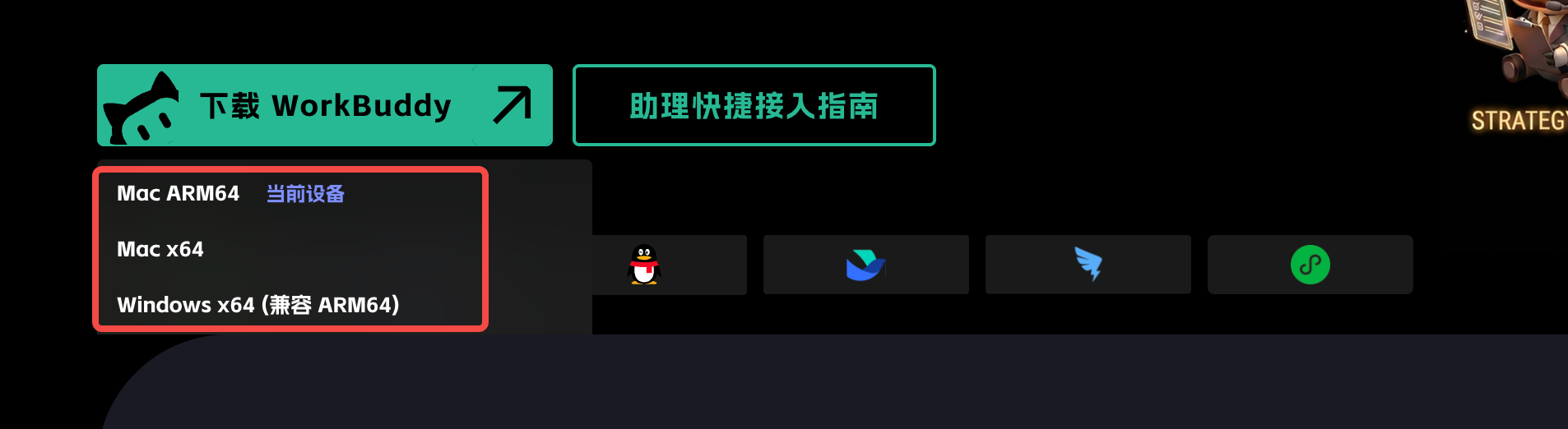
Important: always download from the official entry — never get the installer from a cloud drive or an unknown mirror.
Windows Installation
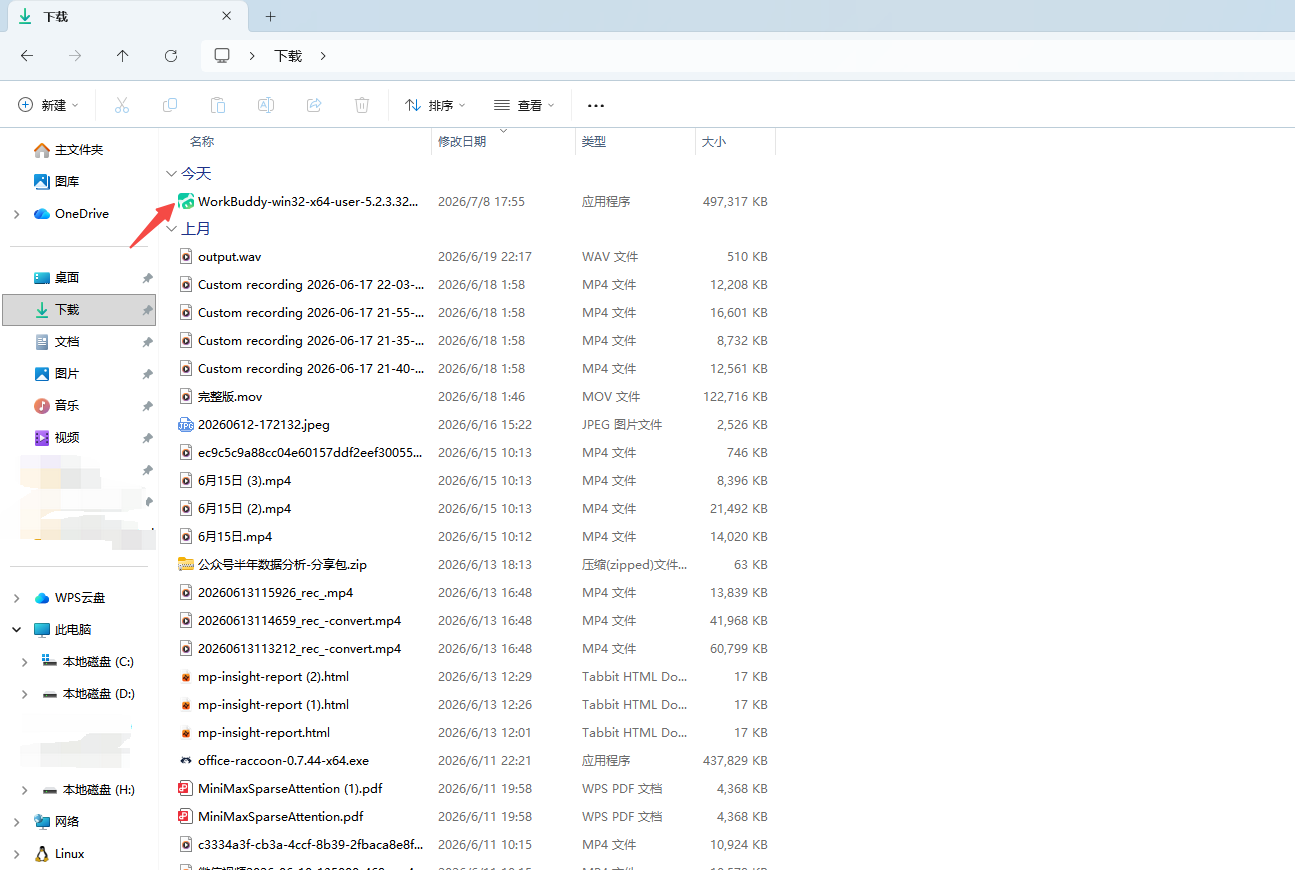
- After the download finishes, double-click the installer.
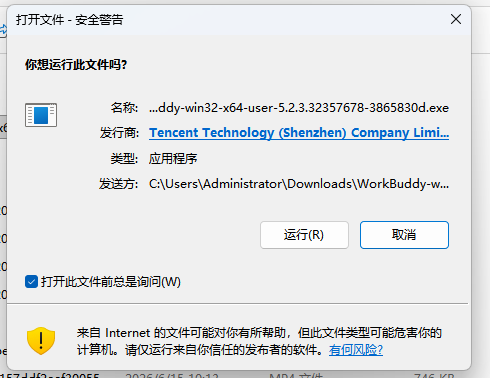
- If the system shows a security prompt, first verify the publisher and download source, then decide whether to continue.
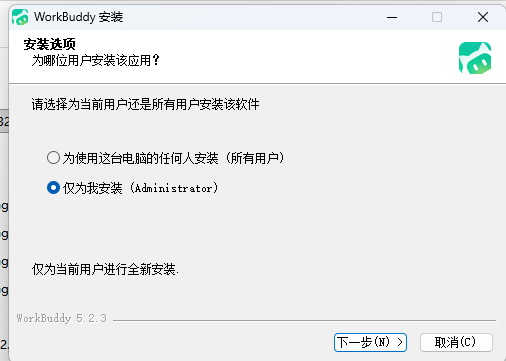
- Follow the setup wizard to finish the install and launch WorkBuddy.
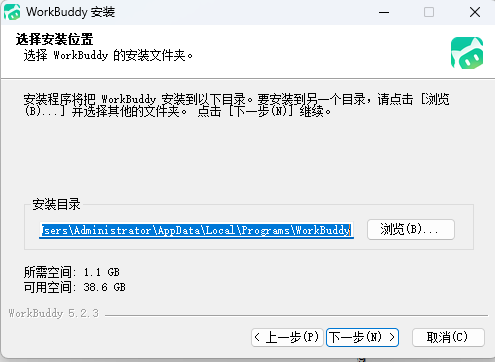
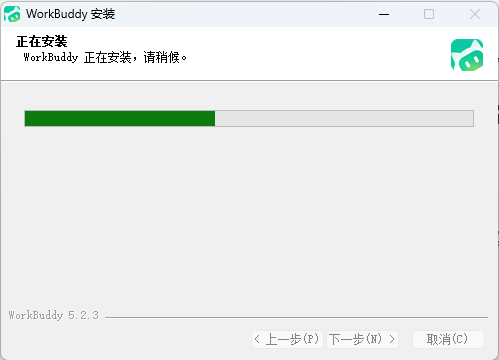
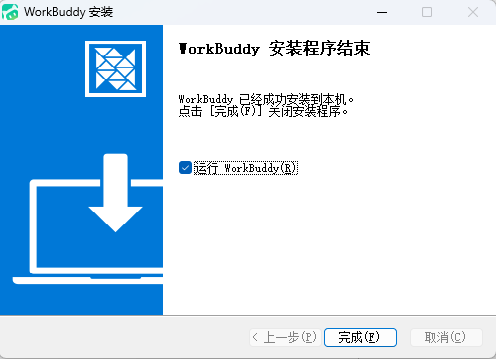
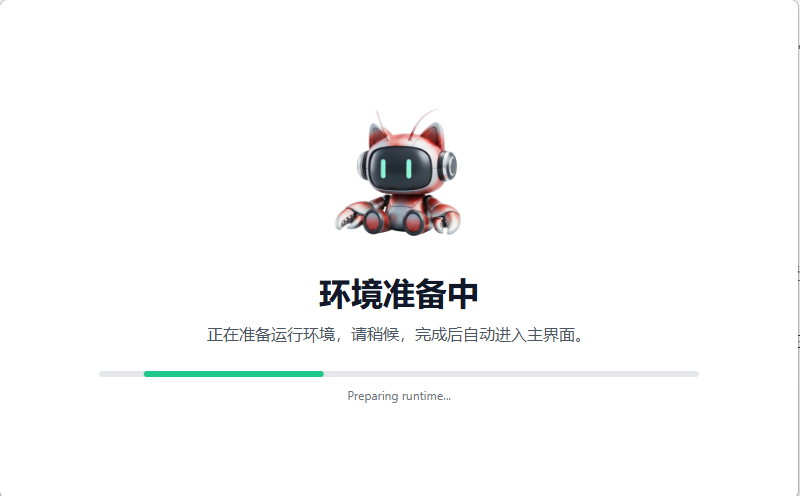
- Proceed to preparing the runtime environment.
macOS Installation
- Open the installer and drag WorkBuddy into "Applications";
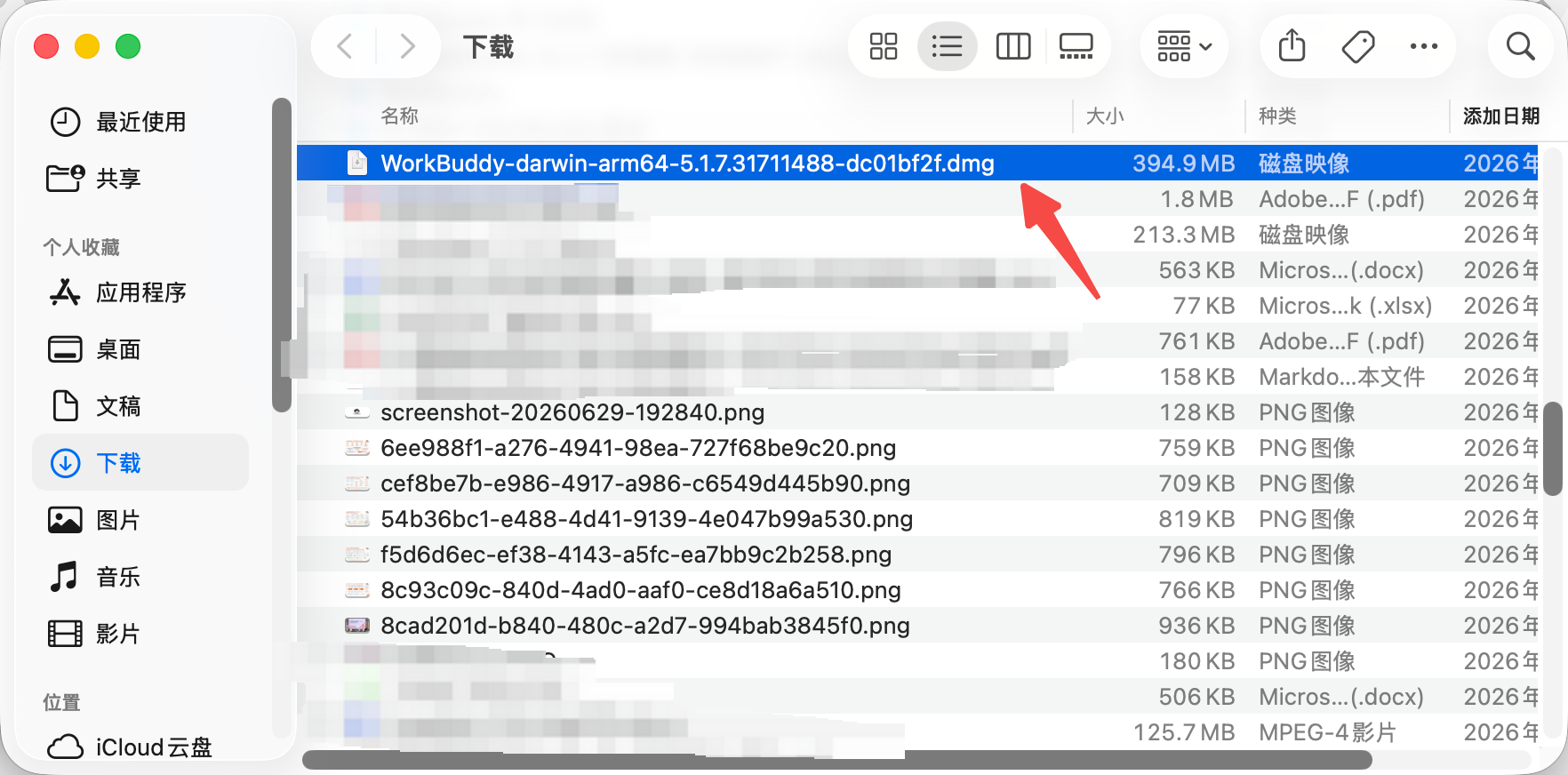
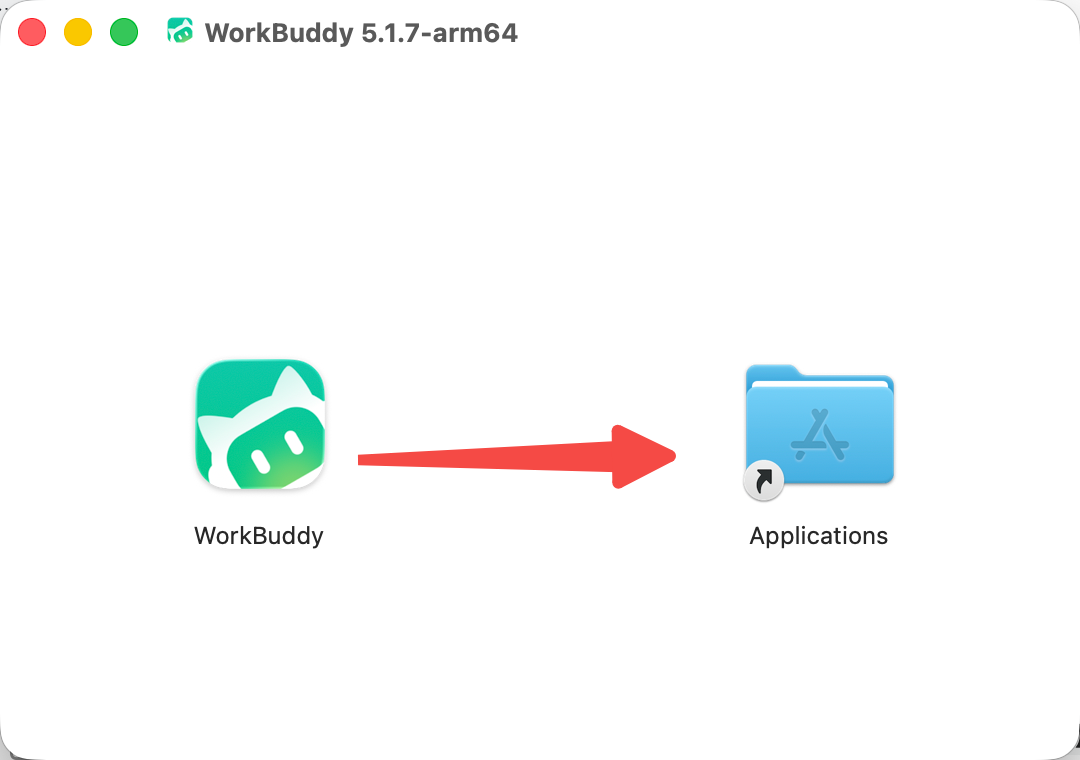
- Launch it from "Applications";
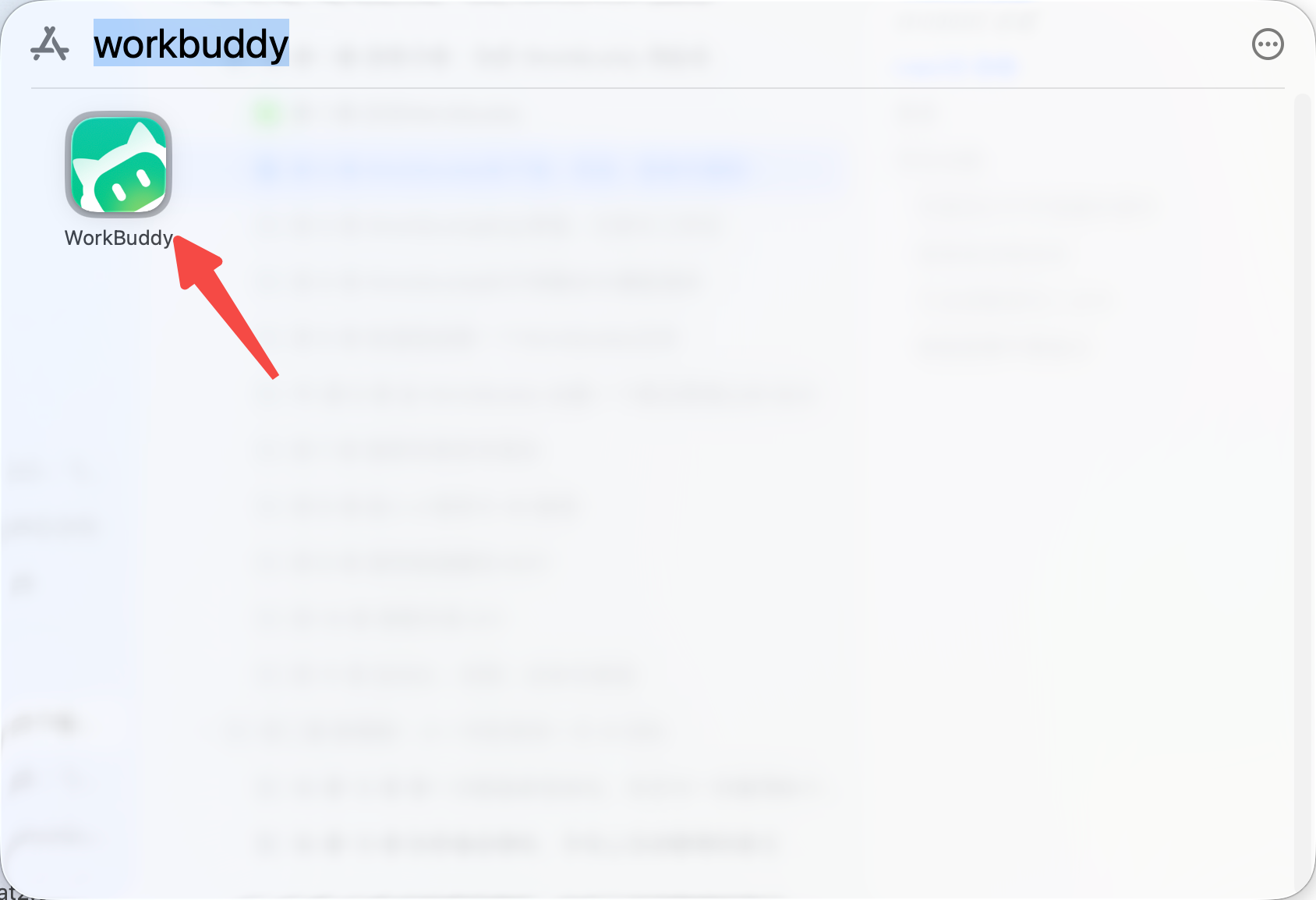
Sign In
Click the sign-in button.
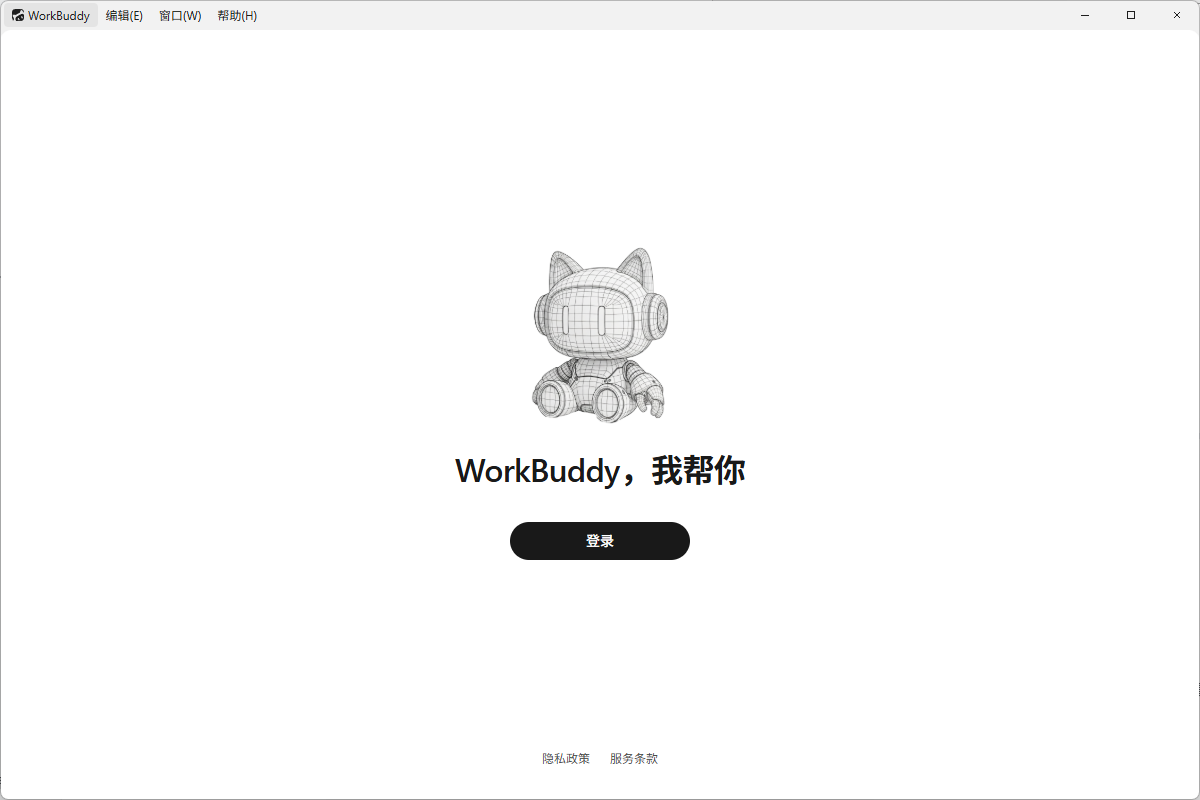
It automatically opens a web page to sign in.
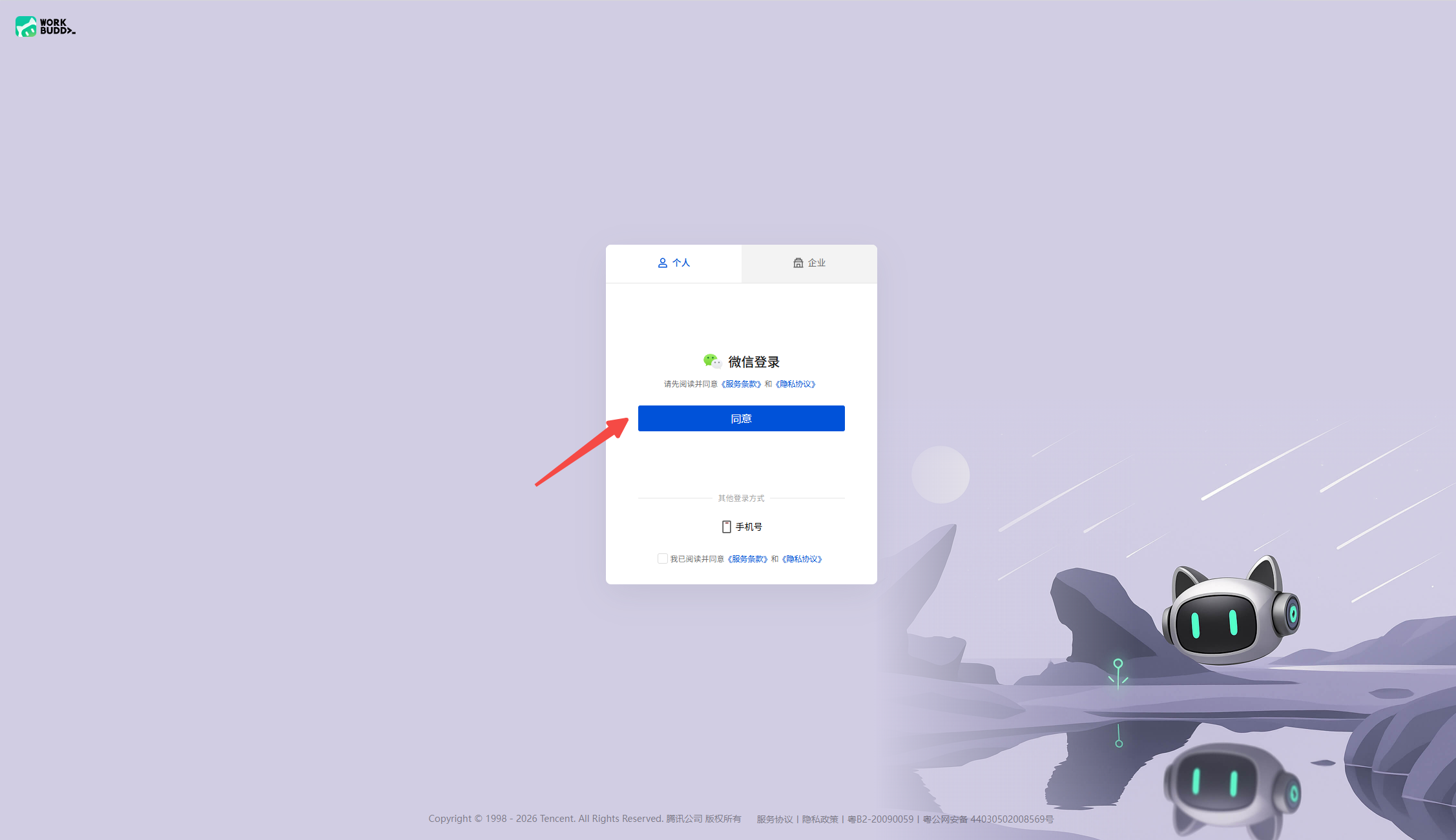
Choose WeChat scan-to-sign-in, or sign in with a phone number.

Once done, you can start using WorkBuddy for work.
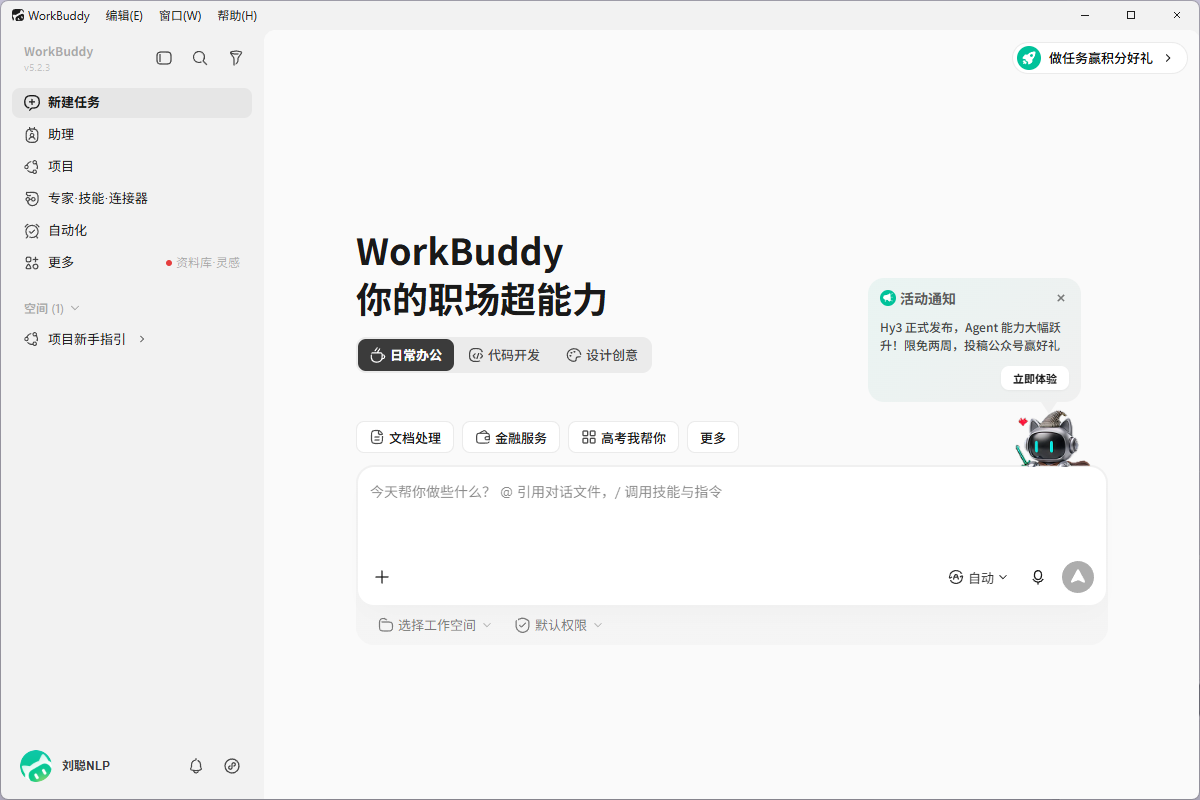
PS: If your company computer blocks software installation, don't bypass endpoint security policies. Contact your IT admin to confirm a whitelist or enterprise deployment method.
Update
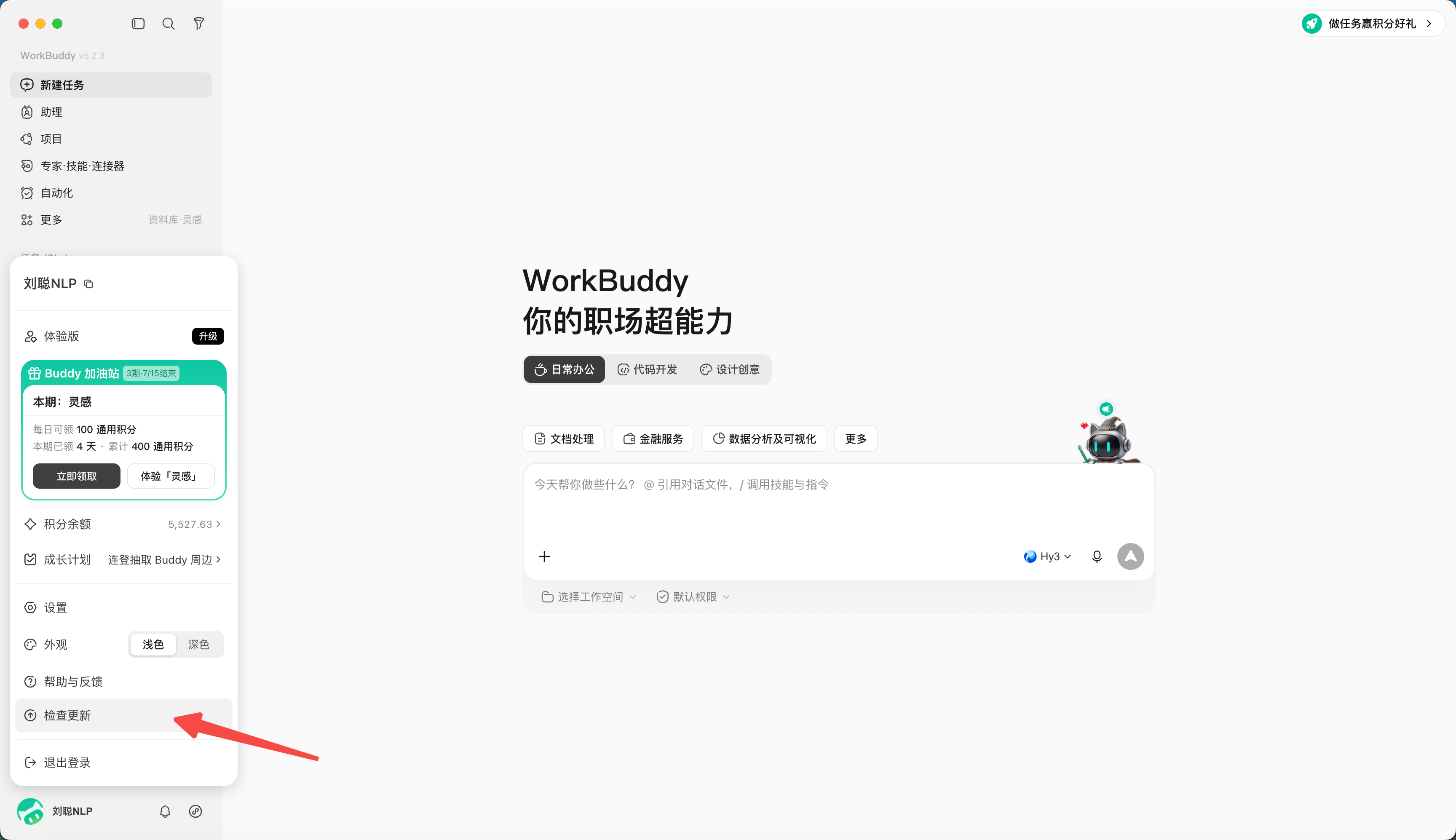
Click your profile in the bottom-left, choose "Check for Updates" to see whether a new version exists; if so, update.
FAQ
The installer won't open or says it's damaged
Delete the installer and re-download from the official site, verifying the system and chip version. If it still fails, record the system version, installer name and a screenshot of the error, and report it through the official feedback channel — don't casually disable system security features.
No response after sign-in
Check whether your default browser blocks the sign-in callback, whether a network proxy affects authentication, and whether the system clock is accurate. Quit the app and retry, keeping logs and screenshots.
Can't read or write files
Confirm the working directory the task selected is correct, that the system grants permission for that directory, and that the file isn't locked by another program. Test first with a blank text file — don't repeatedly experiment on important files.
Should I back up before updating
App updates generally shouldn't modify your work files, but for long-running projects you should still put inputs, deliverables, configs and custom Skills under version control or back them up regularly.