Chapter 17 — A Meeting Ending Isn't the Finish Line — Work Is Just Starting
Why Daily Office Work Keeps Repeating the Same Hauling
Many office days are made of the same set of actions: book a meeting, find material, hold the meeting, take notes, send minutes, create todos, chase progress, write the weekly report, make a deck. Each action looks easy; what really drains energy is info constantly flowing between chat, meetings, email, docs and tables — and each hop can lose context.
flowchart LR
    A[Pre-meeting goal & agenda] --> B[Create meeting & calendar invite]
    B --> C[Record & transcribe]
    C --> D[Facts, decisions, disagreements, todos]
    D --> E[Task system & post-meeting notice]
    D --> F[PRD / plan / PPT]
    E --> G[Daily, weekly & progress tracking]
    F --> G
    G --> H[Project memory & next meeting]
Main Case: A Product Review Meeting That Actually Moves the Project
Scene: the product team reviews a "minutes auto-generate todos" feature. Before, the PM replayed audio after the meeting, organized minutes, and typed action items into the task system one by one — usually half a day, and attendees often disagreed on "who promised what".
This collab chain doesn't aim for unattended running. It keeps human checkpoints at four places: creating the meeting, reading the recording, creating todos and confirming the PRD.
Step 1: Define the Decision to Make Before the Meeting
A meeting with no agenda, no matter how complete the transcript, is just a lot of dialogue. The most important pre-meeting thing isn't sending a link — it's making the meeting type, the questions to answer and the expected deliverable clear.
Prepare a 45-minute agenda for the "minutes auto-generate todos" product review.
Roles attending: product, R&D, design, test, ops.
This time must form three decisions: first-phase scope, todo fields, launch-acceptance metrics.

Read the requirement draft and last decision record in project/meeting-to-task,
Output: meeting goal, pre-meeting material, a per-minute agenda, each topic's host,
questions to decide on the spot, and questions that can be handled async after.
Separate facts from suggestions; list missing info as pre-meeting supplements — don't fabricate.
Step 2: Create the Tencent Meeting and Sync the Calendar
The Tencent Meeting Skill covers the meeting lifecycle: create, modify, cancel, query, view members, and (with permission) get recording, transcript and smart minutes. The official docs require storing the Token in an env var and remind users to follow enterprise data and privacy rules.
The Tencent Meeting Skill isn't a general calendar. The right order: create the meeting to get the meeting number and link, then use a calendar or office-collab connector to create the schedule, invite attendees and book a room.
Fields to confirm before creating
| Field | Example | Why confirm |
|---|---|---|
| Topic | Minutes auto-generate todos - first-phase review | Avoid being unrecognizable in the meeting list |
| Start & end | July 8 14:00–14:45 | Relative time is easy to misread |
| Timezone | Asia/Shanghai | Must be explicit for cross-region collab |
| Attendees | Product, R&D, design, test, ops | Meeting permission and responsibility boundary |
| Recurrence | One-time | Canceling a recurring meeting has bigger impact |
| Entry & waiting room | Internal can join directly | Adjust when external people are involved |
| Recording & transcript | Confirmed by the host during the meeting | Involves notice, permission and privacy |
Use the Tencent Meeting Skill to create a meeting.
Topic: Minutes auto-generate todos - first-phase review
Time: 2026-07-08 14:00–14:45, timezone Asia/Shanghai, one-time meeting.
Return the to-be-created info for me to confirm first; create after I confirm.

After creation, write the meeting number, link, start/end into meeting-brief.md.
Then generate a calendar-invite draft with the agenda and pre-meeting material link;
don't add attendees, send invites or book a room yourself — wait for me to confirm the list.
Create, modify and cancel are different risk levels. Before canceling a meeting, changing recurrence or widening the attendee scope, show the target meeting and impact — don't act on just "cancel the afternoon meeting".
PS: the prompts above can be modified for your own meetings.
Step 3: After the Meeting, Get Recording, Transcript and Content
After the meeting, the easiest mistake is treating "there's audio" as "there's usable info". Recording may not have been on, the transcript may not be generated yet, and the caller may not have view permission.
Query the ended meeting for meeting number 123 456 789.
First return topic, time and host; after I confirm it's the target meeting, query the recording list.
If permitted, get the full transcript, segment info and smart minutes;
if not permitted, stop reading and return the authorization needed — don't try to bypass.
Before downloading or saving, state the file type, size, target directory and retention period.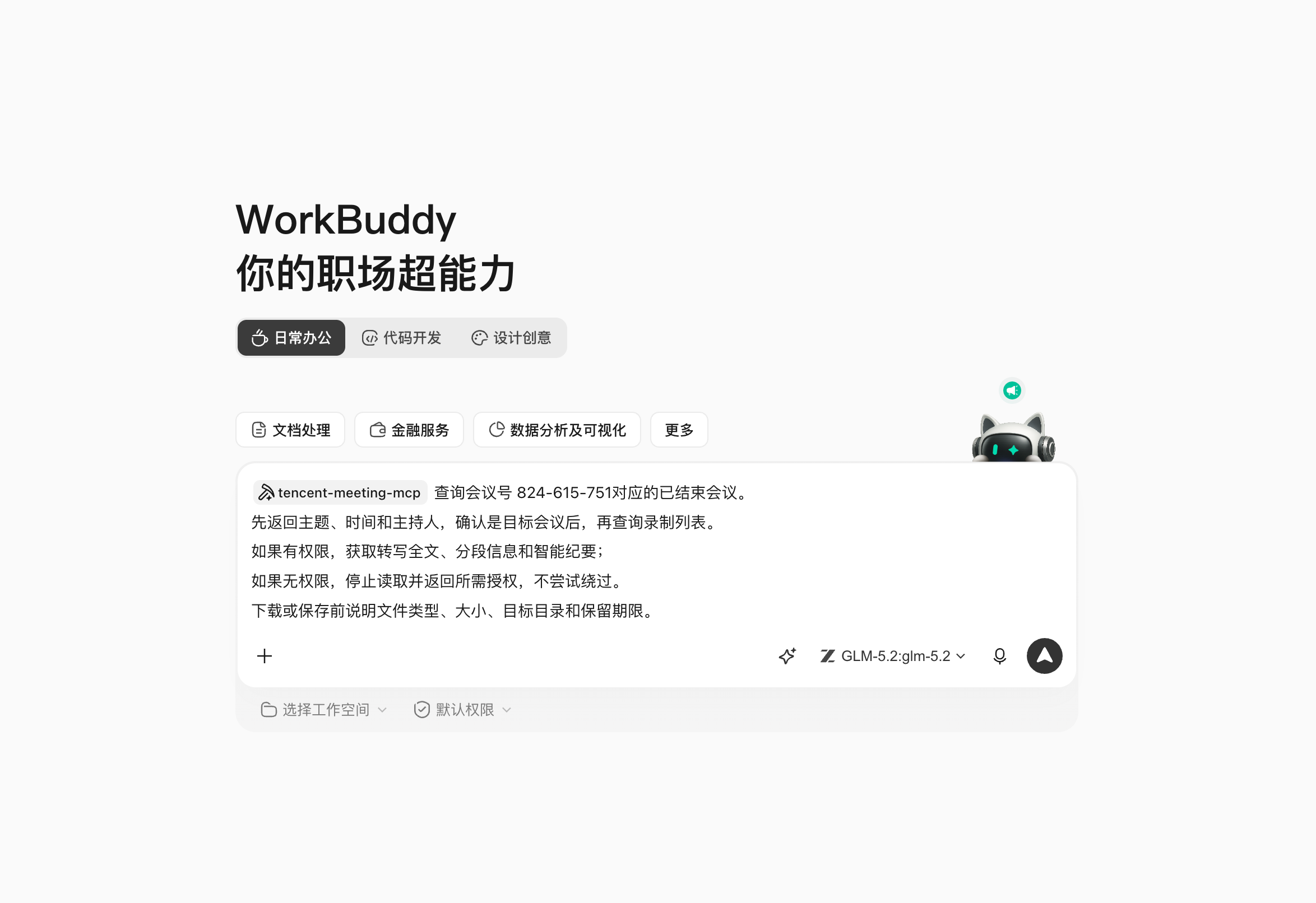
This needs the Tencent Meeting connector; follow the prompt to find "Tencent Meeting" in the connector manager and authorize the connection.
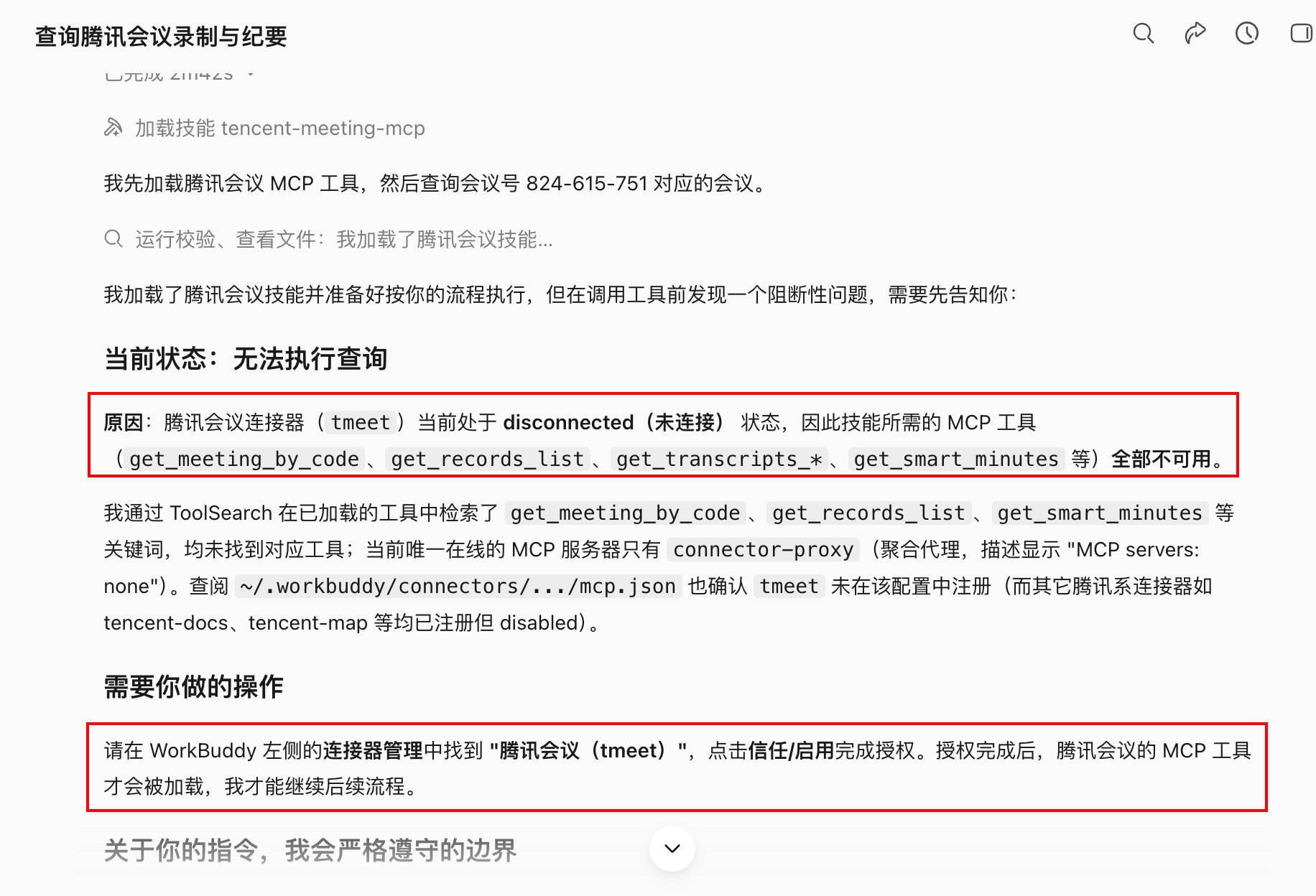
Tencent Meeting capability usually first converts the 9-digit meeting number to an internal meeting_id, then queries details, recording and transcript. The Skill does this — no manual conversion — but keep the meeting number, meeting ID, recording ID, query time and permission status for troubleshooting.
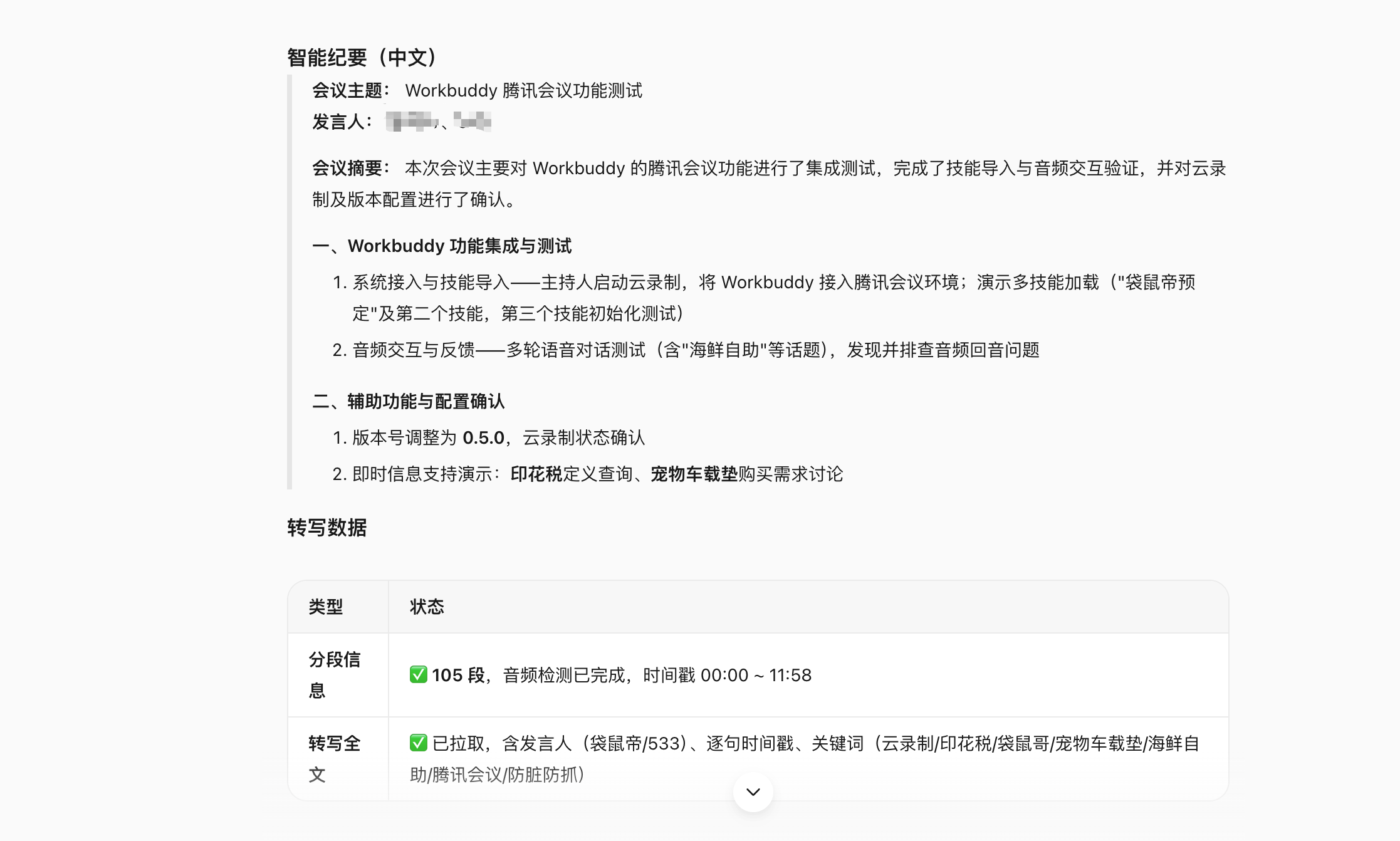
Recording & transcript boundaries
- Clearly notify recording and transcript arrangements before or during the meeting;
- Don't forward recording links to people without permission;
- Don't, on fetch failure, treat chat screenshots or unconsented audio as a substitute source;
- The transcript is machine output — proper nouns, numbers, responsible parties and negations must be checked against the audio;
- Enterprise meetings follow your org's retention period, data classification and compliance rules.
Step 4: Generate Executable Meeting Minutes From the Transcript
One set of minutes holds five kinds of info
| Type | Example | Handling |
|---|---|---|
| Background facts | Current minutes take 40 min to organize on average | Attach source or speech time |
| Confirmed decisions | First phase only supports post-meeting todo drafts | Record decider and time |
| Action items | Product fills the field-mapping table | Owner, due date, deliverable |
| Open questions | Whether to support cross-project todo copy | Goes to next decision; don't disguise as a conclusion |
| Discussion suggestions | R&D proposed doing the async queue first | Mark as suggestion; don't write as a commitment |
Generate meeting minutes; don't rely only on the platform smart summary; verify key numbers, responsible parties and negations against the transcript.

Output:
1. Meeting basic info;
2. Three-sentence conclusions;
3. Discussion summary by topic;
4. Decision table: decision, reason, decider, timestamp;
5. Action-item table: task, owner, due date, deliverable, dependency;
6. Open questions and next confirmation time;
7. Names, numbers and terms in the transcript that can't be confirmed.

Tasks with no clear owner are written "to claim"; those with no clear date "TBD";
don't guess owner or due date from tone.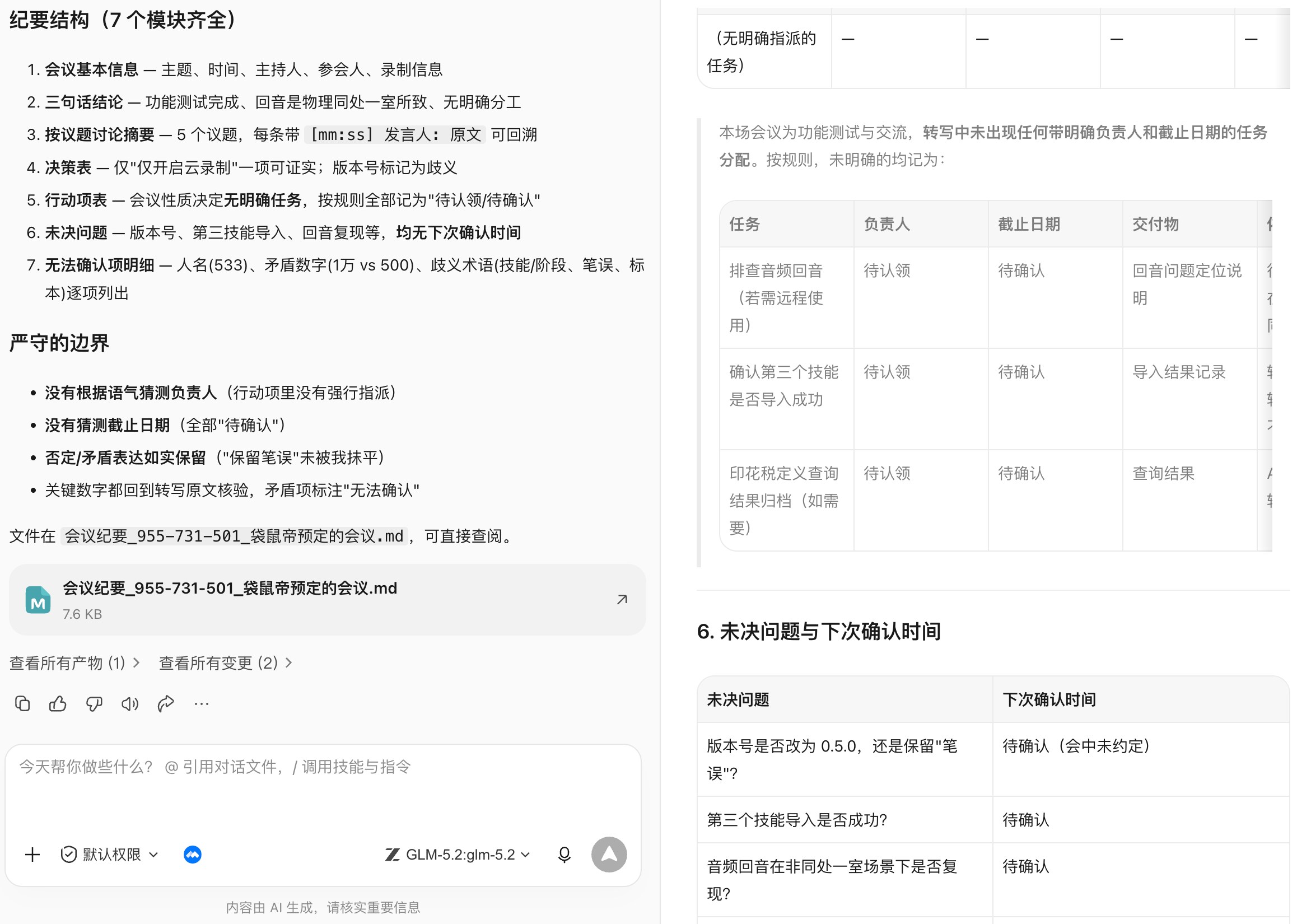
Step 5: Minutes' Todos Can't Be Silently Written to the Task System
Why two-step confirmation
In-meeting speech and a formal task aren't the same thing. Turning "we could look at that" into a task assigned to someone creates extra management cost.
Read the action items in minutes-approved.md and only generate a todo-import preview.
Each shows: title, description, owner, due date, priority, deliverable, source meeting.
Items missing owner or date go to "to supplement" — don't create them.
Group by owner for me to confirm first; write to the specified task list after confirmation.
After writing, return success, fail, skip and duplicate lists — don't send reminder messages.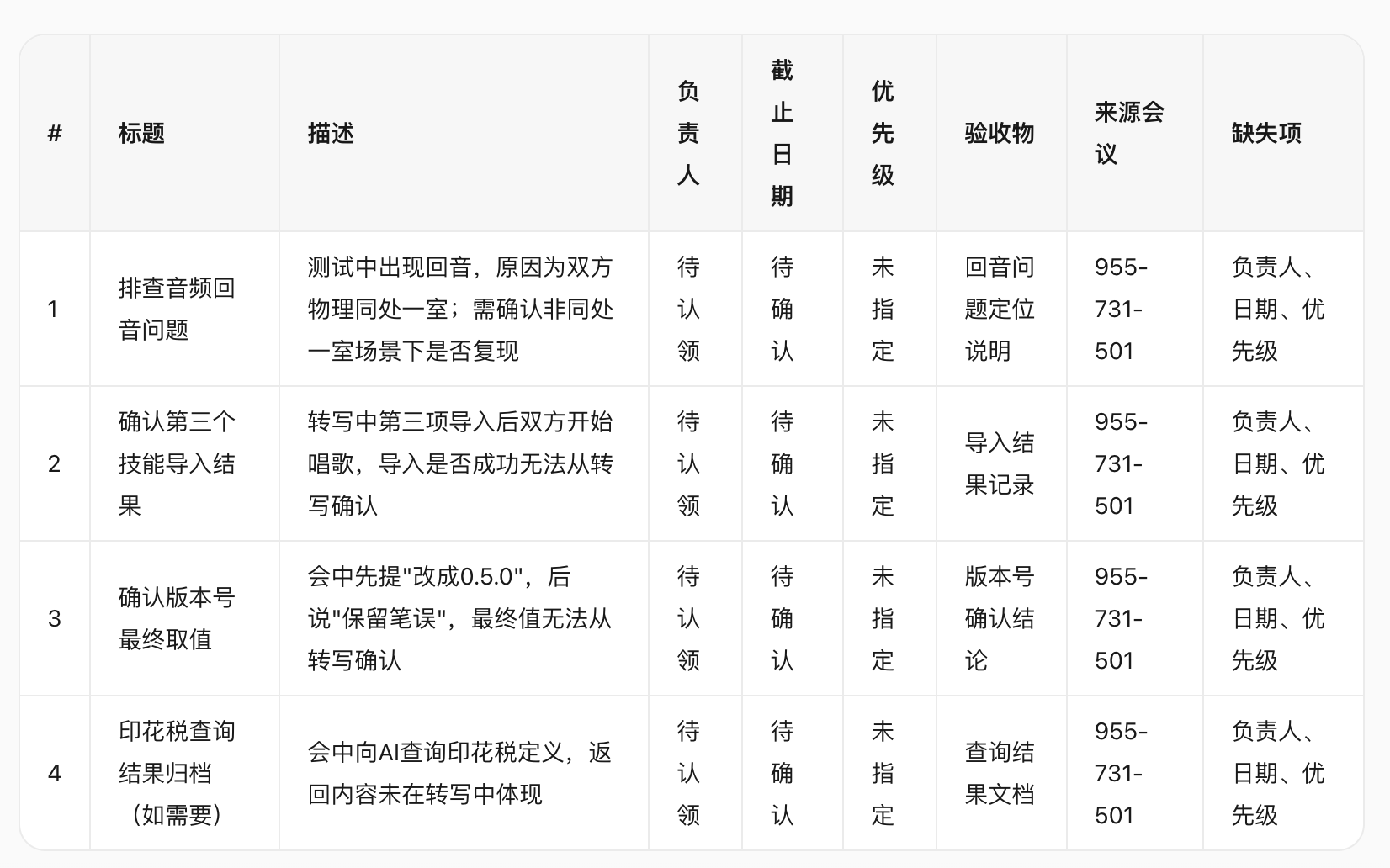
Since my meeting this time is mainly for demo, the action-item owners are all "TBD".
A stable flow: minutes draft → attendee confirmation → todo preview → human fills owner & date → write to task system → return task links. On repeat runs use "meeting ID + action-item number" as the idempotency key to avoid creating duplicate tasks.
Step 6: Post-Meeting Notification and Tracking
After the meeting you can generate email or group-message drafts, but before sending you must confirm recipients and visibility:
From the meeting record generate two post-meeting notification drafts:
A. To all attendees: conclusions, action items, open questions and the minutes link;
B. To management: three-sentence conclusions, key risks and decisions needing support.
Don't include recording download addresses, raw internal disputes or unconfirmed personal responsibility.
Generate drafts only — don't send.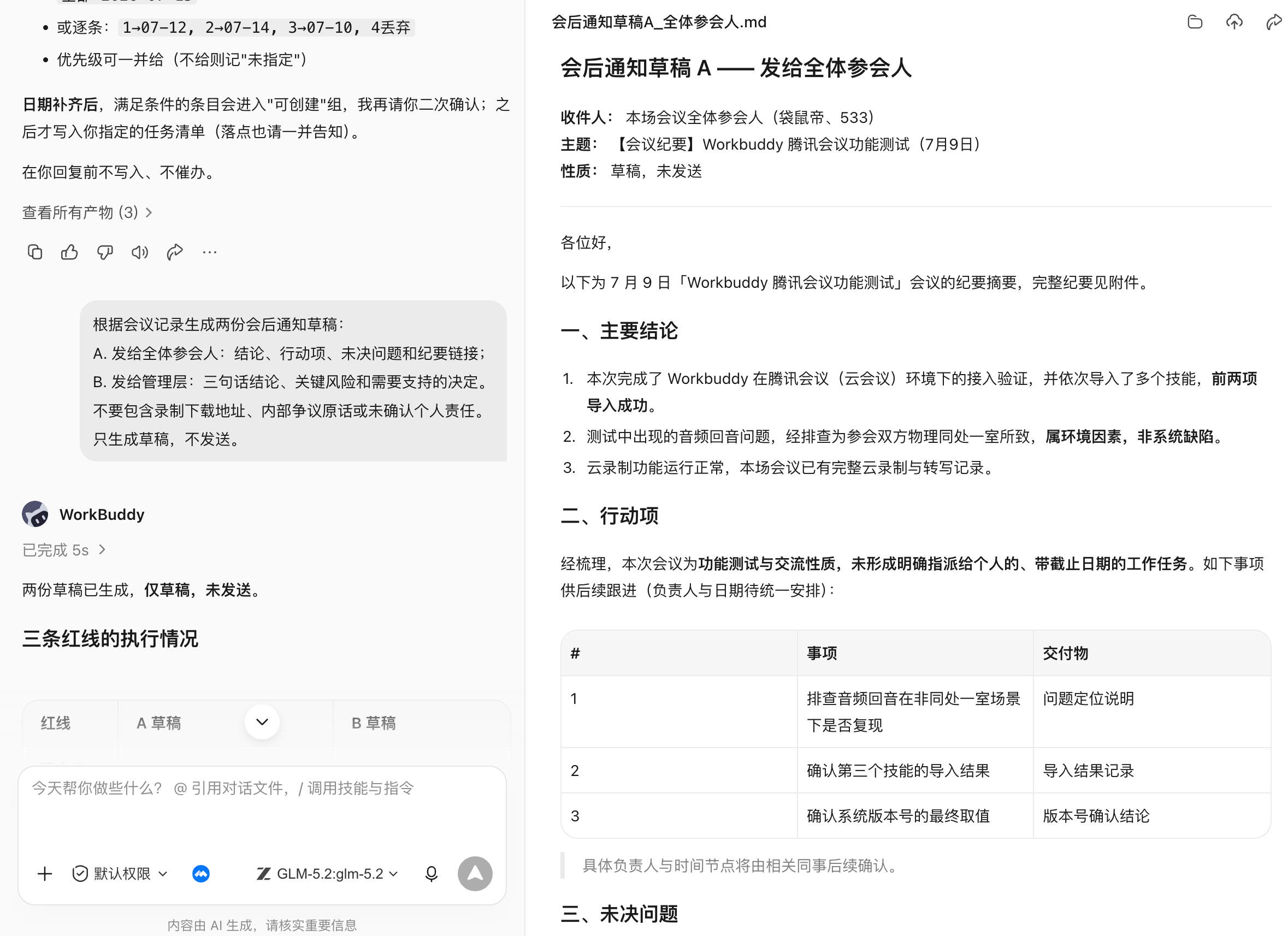
Batch renames must keep a mapping table; name conflicts don't overwrite; contract, finance and HR files follow org rules — don't guess the category from filename alone.
Post-Meeting Extension: Turn Minutes Into a Report PPT
First fix the audience and conclusion, then design pages:
From the meeting minutes generate an 8-page project report PPT.
Audience is management; goal is to confirm first-phase scope and the resource gap.
Pages: conclusion, background, user problem, confirmed scope, progress, risks, resource asks, next step.
One conclusion per page; numbers come from the status table, decisions from the minutes;
no unexplainable decorative charts. Return a page-level outline and evidence map first; generate the PPT after I confirm.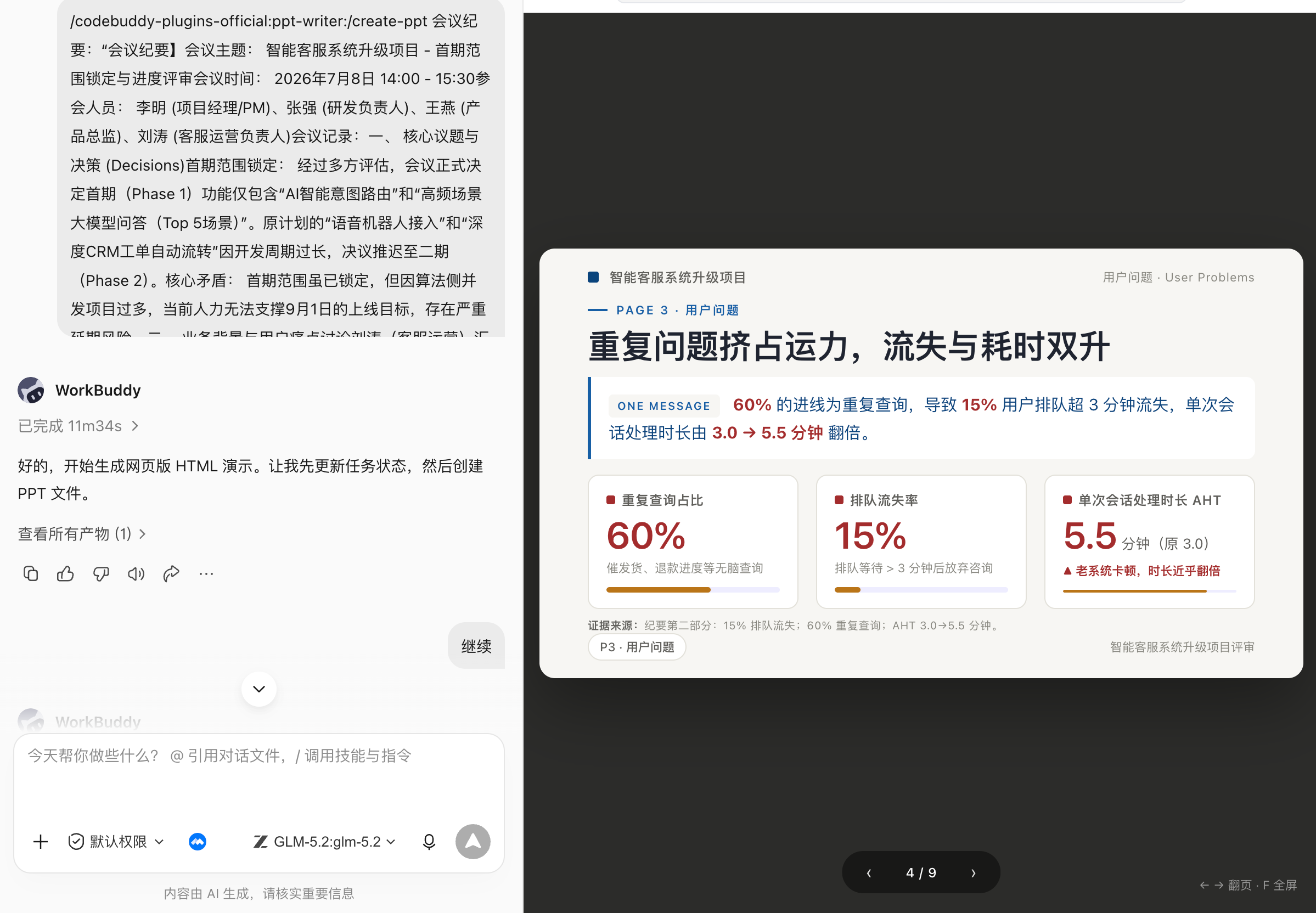
A Basic Office Skill Stack
| Task layer | Optional capabilities | Default safe action |
|---|---|---|
| Meetings | Tencent Meeting Skill, calendar connector | Preview before create, double-confirm before cancel |
| Content | Recording, transcript, minutes templates | Keep source and timestamp |
| Collab | Tasks, email, IM, Tencent Docs/WPS | Generate draft or import preview first |
| Product | PRD templates, custom PM Skill | Only use confirmed requirements; keep open questions |
| Files | DOCX, PDF, OCR, file tidying | Copy first; don't overwrite, don't delete |
| Data | Excel, formulas, charts, data analysis | Reconcile first, then analyze |
| Reports | PPT, charts and brand templates | Page-level outline and evidence map first |
| Automation | Daily, weekly, reminders and archiving | Small-scope trial; failure can be taken over |
Don't install a dozen Skills at the start. Pick one task that happens weekly, has stable input and an easy-to-accept result — e.g. minutes to todos; after it runs reliably, connect PRD, weekly and reports onto the same chain.